
Configuration guide ControlByWeb® WebRelay® PoE (X-WR-1R12-1I-E)
This configuration guide describes how to switch a ControlByWeb® WebRelay® PoE with a Behnke Station. We assume that the Behnke Station and the relay have already been integrated into the network and are accessible via their IP addresses in a browser. We also assume that the Behnke Station is already registered with a PBX and can make calls. It is assumed that the Behnke-Station is already set up to the extent that access to the web interface is possible. If this is not the case, please follow the instructions provided with your base electronics (manuals) and refer to the technical manualRecently updated — within the last 72 hours to complete the basic setup.
1. Setting up the web relay
-
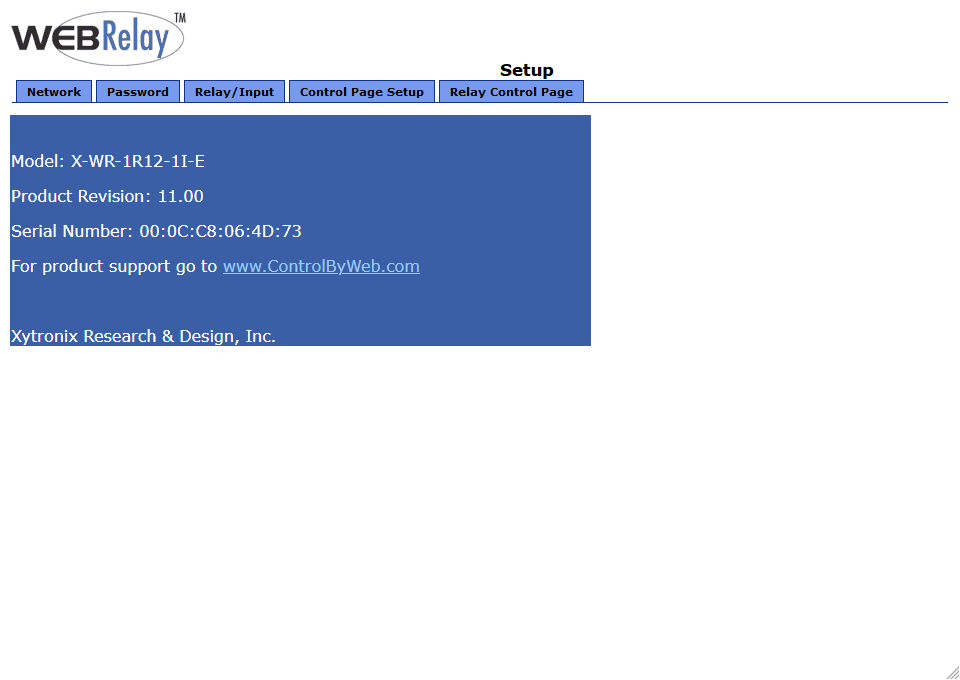
Start your browser, go to the relay's configuration interface and log in.
-
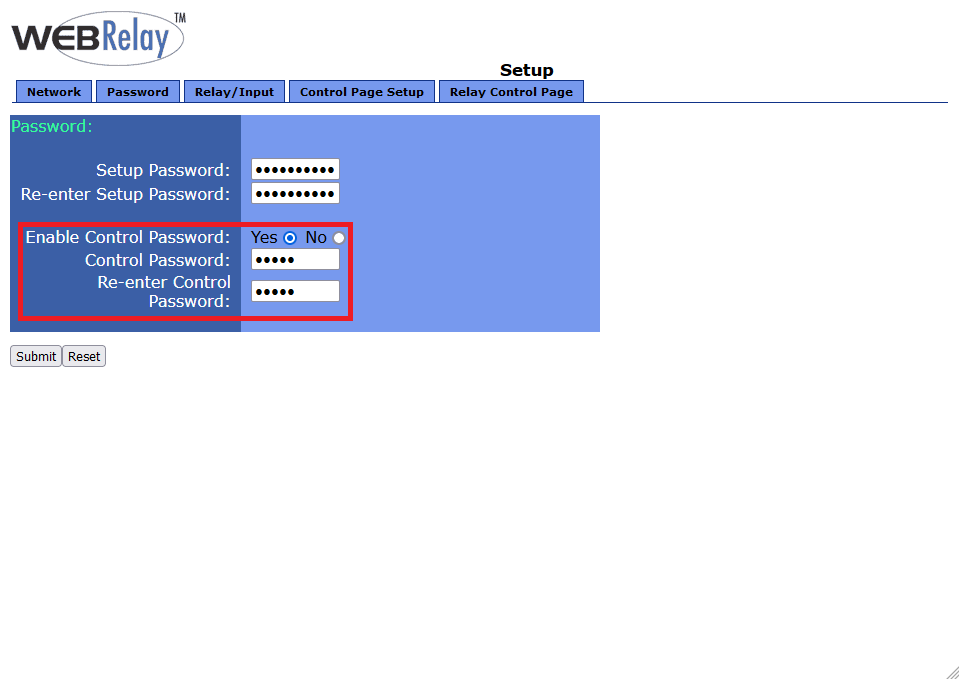
Switch to the "Password" tab at the top. There, set "Enable Control Password" to "Yes", and below that set a password to enable the relay. Then click "Submit" below.
-
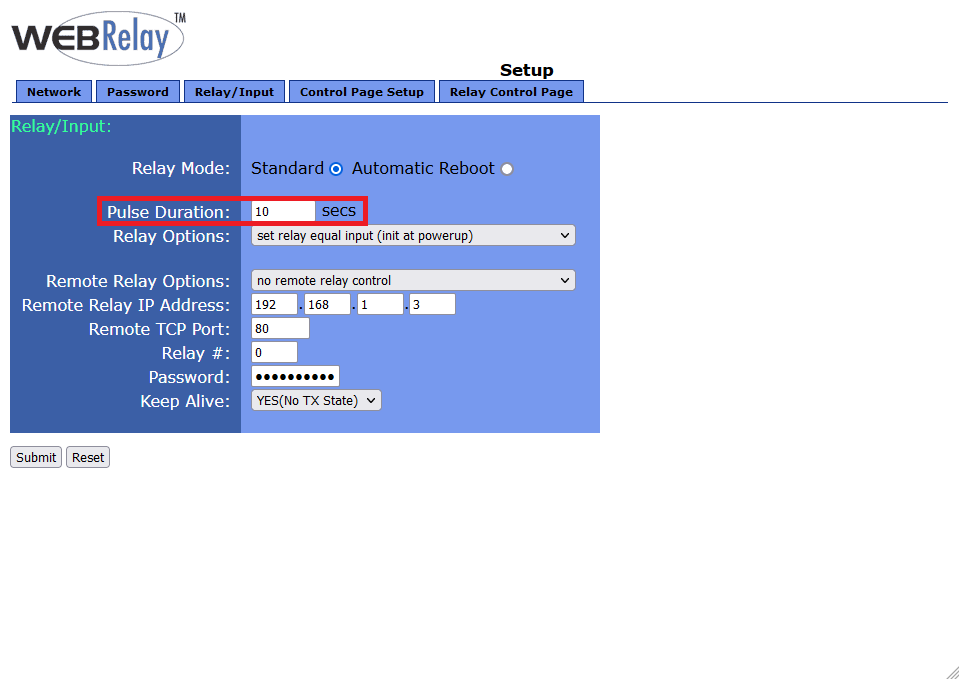
Switch to the "Relay/Input" tab and set the "Pulse Duration". This determines the duration for which the relay is activated when you send the command. Then click "Submit".


2. Configuring the Behnke Station
-
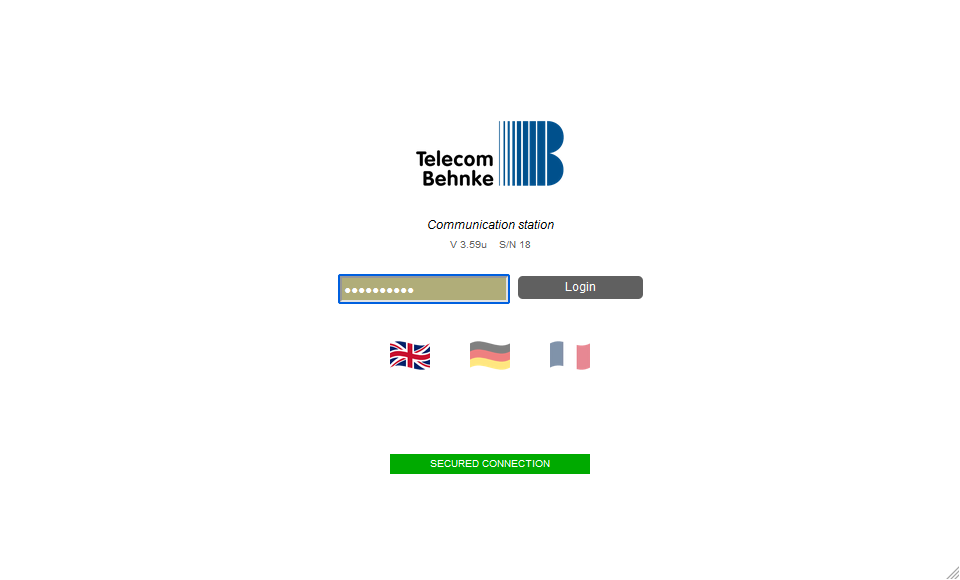
Open a new tab in your browser, go to the Behnke Station's interface and log in.
-
Click on "Relay" in the menu on the left. Scroll down to the relay that you configured as a door opener relay. Here you can enter the command for activating the web relay in the field "Webhook for activation". Then click "Save" at the bottom left. The command to activate the relay is:
http://admin:@ /state.xml?relayState=2 Example:
http://admin:1234@192.168.0.47/state.xml?relayState=2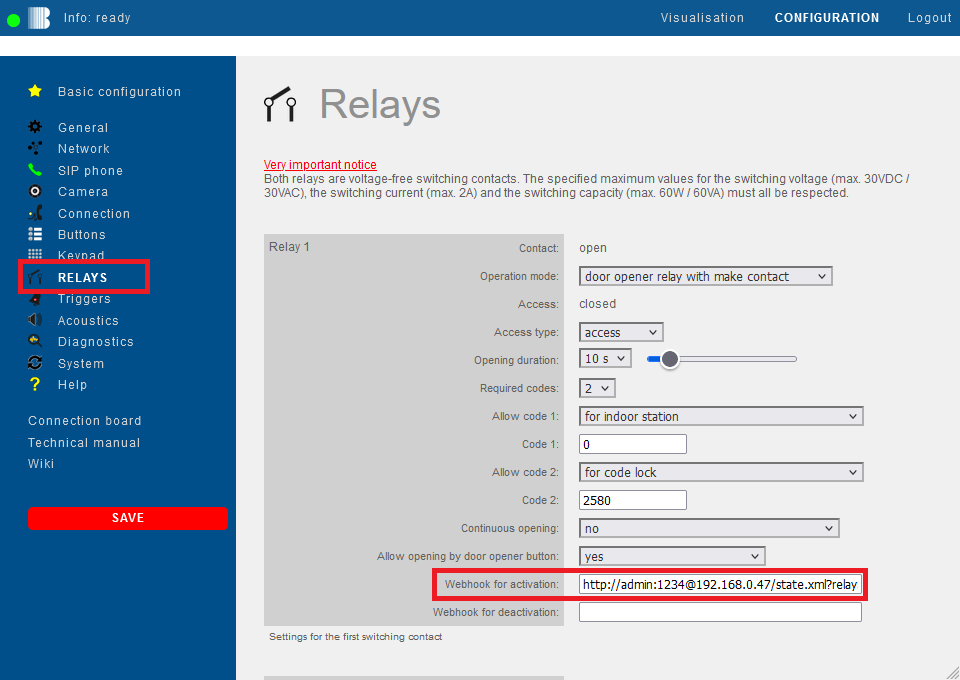


Configuration is now complete. If you trigger a call at the Behnke Station and transmit the code for activating the relay via DTMF on the callee's phone, the Behnke Station will activate its own relay and at the same time transmit the command to activate the web relay. The web relay is then activated for the configured duration.
3. FAQ
Note
There is currently no content available here yet. As soon as content is planned, the pages will be marked as planned. Feel free to use the Report a problem function on the right in the toolbar to request new content, ask questions, or report anything that is unclear.
You can also give feedback after every heading, so that we can continuously improve our wiki:
- Move your mouse over the heading
- A small ? appears
- Click the small ?
We welcome every suggestion, every correction and every idea for improvement.