
Configuration guide snom® D385N
This configuration guide describes how to set up a snom® D385N as an extension of your PBX and automatically display the Behnke Station's video on calls. We assume that the basic configuration of the snom® has already been made and that the device is accessible via the IP address in a browser. We only describe how to register the snom® with your PBX and setting up the video display. We also assume that the Behnke Station has already been set up as an extension of your PBX. It is assumed that the Behnke-Station is already set up to the extent that access to the web interface is possible. If this is not the case, please follow the instructions provided with your base electronics (manuals) and refer to the technical manualRecently updated — within the last 72 hours to complete the basic setup.
1. SIP registration
-
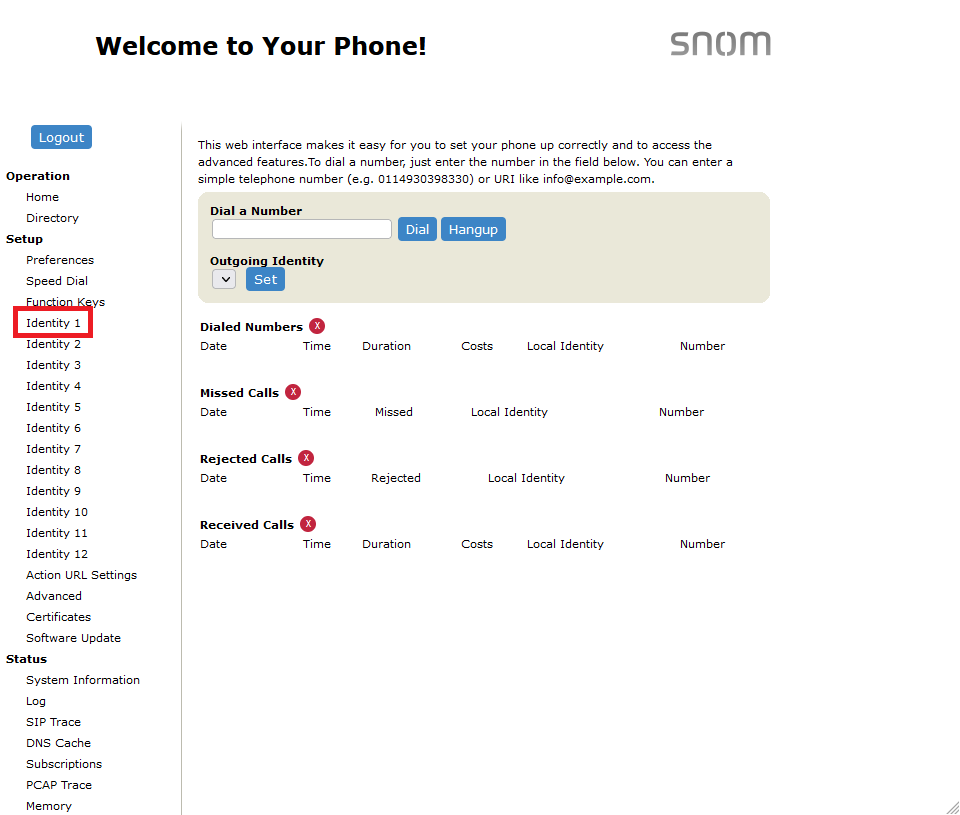
Call up the web interface of the snom® in your browser and log in with your admin credentials. Then choose a free identity from the menu on the left.
-
Fill in the fields with the SIP registration information of your PBX. Also make sure that "Identity active" is checked at the top. Then click on
Applybelow.Field snom® D385N Value PBX Displayname an arbitrary name Account snoms® user ID on your PBX Password SIP password Registrar IP address of your PBX Authentication Username SIP ID 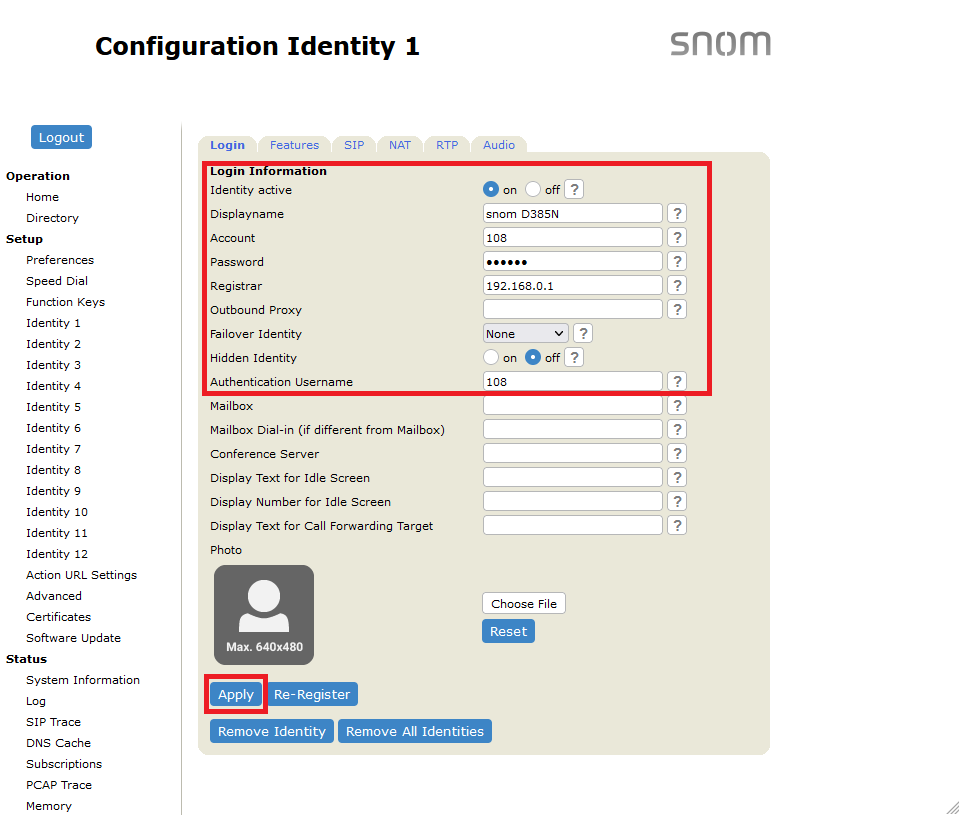


2. Video display
NOTE:This function can only be implemented with Behnke Stations that have a USB camera or an IP camera integrated as a system camera.
2.1 Configuring the video display
In order to display the Behnke Station's video on the snom® during a call, you have to create an entry for the Behnke Station in your snom®'s directory.
To do this, click on "Directory" in the menu on the left of the snom's® web interface. In the "Add or edit entry" section, fill in the fields with the information about the Behnke Station as follows, and then click Add:
| Field snom® D385N | Value Behnke Station |
|---|---|
| Nickname | an arbitrary name for the Behnke Station |
| Number | Behnke Station's extension number on your PBX |
| Action-URL | http://<IP address of the Behnke Station>:8080/?key=<Camera password>&snom, please refer to "2.2 Action URL" |

NOTE:
- You can find out the extension of the Behnke Station by making a call to the snom® from the Behnke Station. The extension is then shown on the display of the snom® as the caller's number.
- The password for accessing the camera can be found on the web interface of the Behnke Station in the "Camera" menu item, in the "IP camera" section, in the "Password" field.
- The other fields here are optional and do not have to be filled out.
2.2 Action URL
In order to retrieve the Behnke Station's video on your snom® you have to enter the action URL. By default the URL is:
http://<IP address of the Behnke Station>:8080/?key=<Camera password>&snom, for example:
http://192.168.0.8:8080/?key=Admin&snom
This URL is used to retrieve the video without encryption. If you prefer to retrieve it with encryption you can use this action URL instead:
https://192.168.0.8:8443/?key=Admin&snom
However, please note that when retrieving the video via HTTPS, fewer frames per second may be displayed, or the video may only be displayed with a delay. Also you will have to add the Behnke Station's TLS certificate as a trusted certificate on your snom®. To do this, please follow these steps:
-
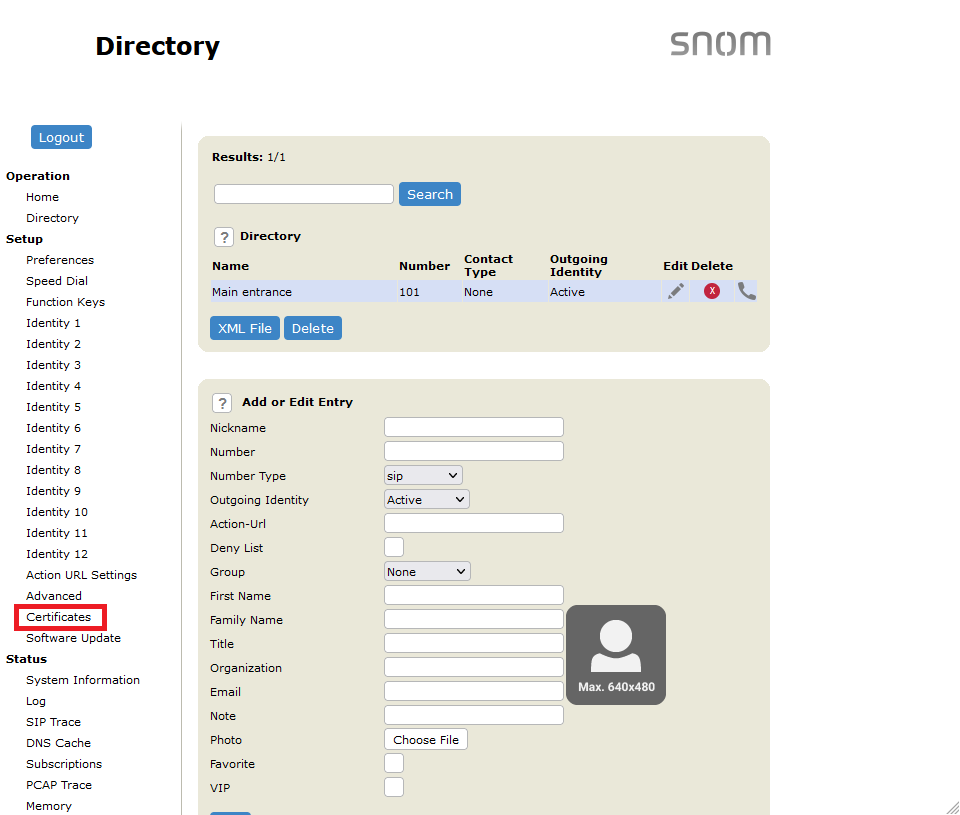
After you have created the phone book entry with the action URL for encrypted retrieval of the video in the snom®, trigger a call to the snom® from the Behnke Station. A message will appear on the snom's® display informing you that an encrypted connection has failed. Then click on "Certificates" in the menu on the left of the snom's® web interface.
-
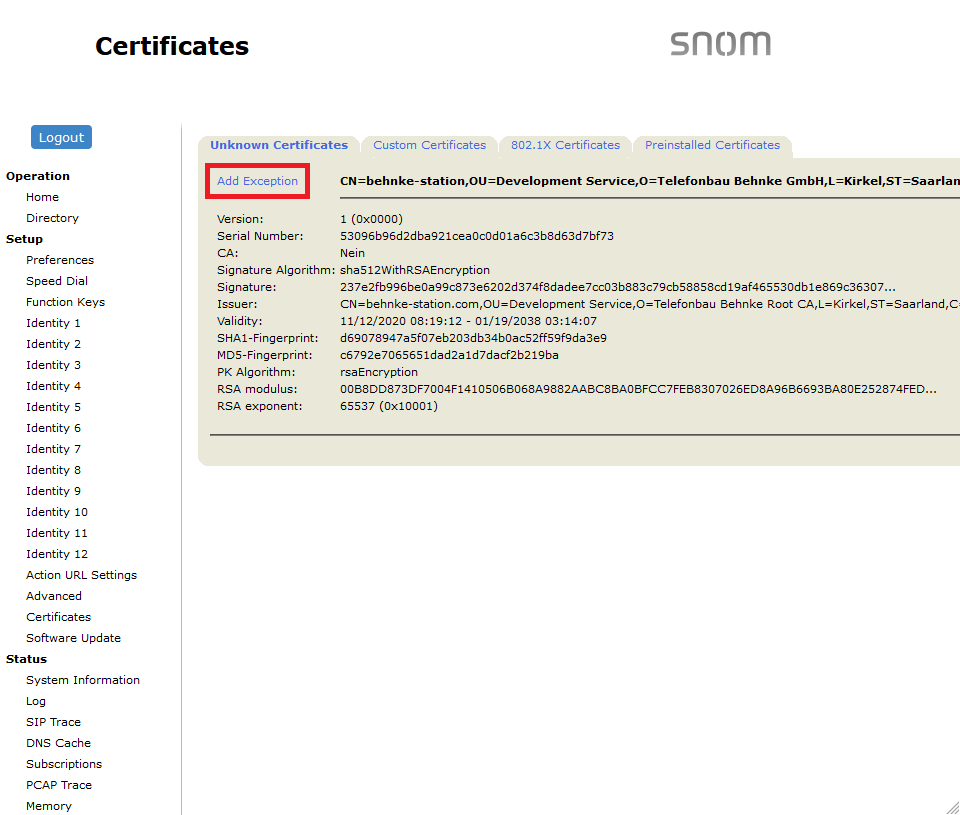
There you should find an entry for the Behnke Station's certificate on the "Unknown certificates" tab. Click "Add Exception" here.
-
Then switch to the "Own Certificates" tab. If
(Expired)is displayed in the "Validity" line, the snom® was unable to check the validity of the certificate. Then make sure that the snom® can obtain the correct time via NTP. If in doubt, contact your admin or your snom® support.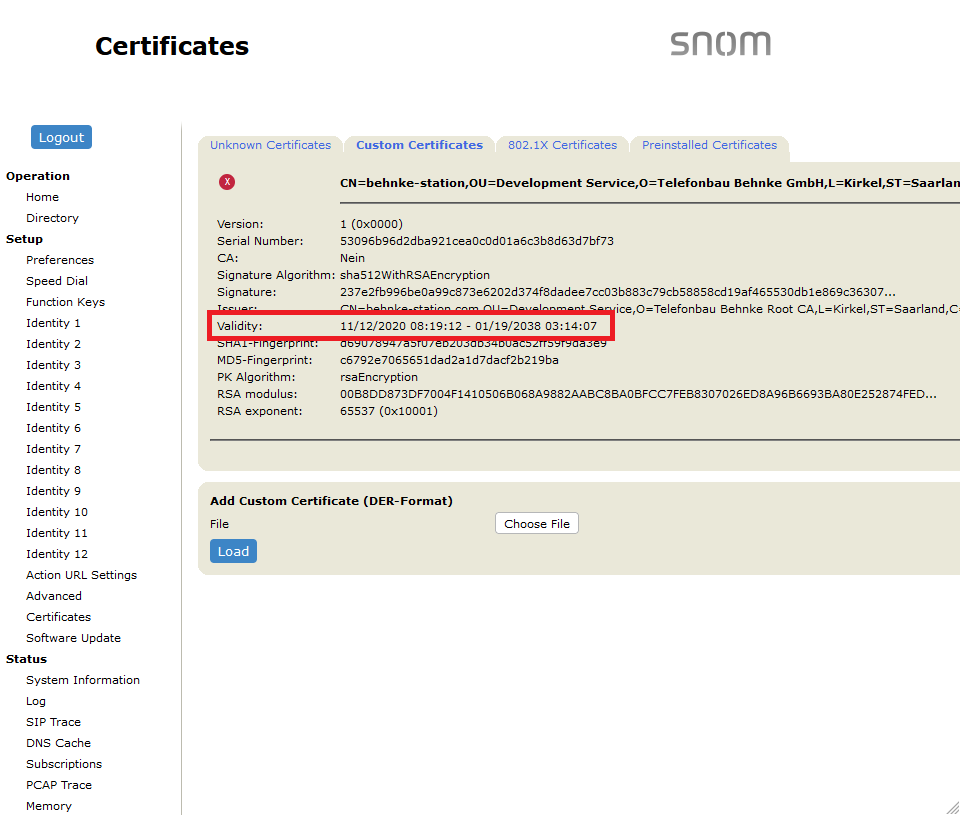
-
Then call up the following URL in your browser:
http://<IP address of the snom®>/dummy.htm?settings=save&check_fqdn_against_server_cert=off


After that, when triggering a call on the Behnke Station, you should see the corresponding video.
2.3 Additional parameters
The display of the video can be manipulated with additional parameters. You can simply append these parameters to the above action URL. It's also possible to use multiple parameters in the URL. Here is the full list of parameters:
-
Parameter "horizontal position" (
&x=<Position>):This parameter defines the horizontal position of the video on the snom's® display. If this parameter is not specified in the URL, the video will be displayed at horizontal position 0.
Example:
To display the video at horizontal position 15 of the snom's® display, use the following URL:http://192.168.0.8:8080/?key=Admin&snom&x=15 -
Parameter "vertical position" (
&y=<Position>):This parameter defines the vertical position of the video on the snom's® display. If this parameter is not specified in the URL, the video will be displayed at vertival position 0.
Example:
To display the video at vertical position 30 of the snom's® display, use the following URL:http://192.168.0.8:8080/?key=Admin&snom&y=30 -
Parameter "maximum width" (
&max_width=<Width>):This parameter defines the maximum width of the retrieved video. The Behnke Station can only scale the resolution of the camera with certain factors. With this parameter, the Behnke Station sends the video with the resolution that best fits the specified maximum width.
Example:
To retrieve the video with a maximum width of 480 pixels, use the following URL:http://192.168.0.8:8080/?key=Admin&snom&max_width=480 -
Parameter "maximum height" (
&max_height=<Height>):This parameter defines the maximum height of the retrieved video. can only scale the resolution of the camera with certain factors. With this parameter, the Behnke Station sends the video with the resolution that best fits the specified maximum height.
Example:
To retrieve the video with a maximum height of 272 pixels, use the following URL:http://192.168.0.8:8080/?key=Admin&snom&max_height=272 -
Parameter "resolution" (
&resolution=<Width>x<Height>):This parameter allows the video to be retrieved in a specific resolution. The Behnke Station scales the native resolution of the camera with the most suitable factor and, if necessary, crops or adjusts the edges of the video to fit. Please note that this procedure is computationally intensive and the video may be delayed or displayed with a lower frame rate.
Example:
To retrieve the image with a resolution of 480x272 pixels, use the following URL:http://192.168.0.8:8080/?key=Admin&snom&resolution=480x272
3. Direct SIP calls (for usage without PBX)
According to the information we have, SIP direct calls are not supported. If in doubt, please contact your snom® support.
4. Other
Link to the Snom Service Hub Video Streaming with Snom Phones (Motion-JPEG)
4. Trouble shooting
Please click on a problem below, in order to get an exact description and solutions.
You want to retrieve the Behnke Station's video via HTTPS (with encryption) on the snom®, but the video is not displayed.
Please check the following things:
- Check the exception for the certificate of the Behnke station in the snom® (**"Certificates"** > **"Own certificates"**). If the message {-(Expired)-} is displayed there, the certificate could not be validated. Make sure that the snom® can obtain the correct time via NTP.
- A setting must be made on the snom® that cannot be set via the web interface. To do this, call up the following URL in your browser: http://
/dummy.htm?settings=save&check_fqdn_against_server_cert=off
You are using a snom® other than D385N and the video is not displayed, even though the setup has been carried out as described above.
Please note that the procedure described above does not appear to work with all snom® devices. If in doubt, please contact your snom® support.