
Configuration guide Gigaset® Maxwell 4
This configuration guide describes how to set up a Gigaset® Maxwell 4 as an extension of your PBX and how to automatically display the Behnke Station's video on calls. We assume that the basic configuration of the Gigaset® has already been made and that the device is accessible via the IP address in a browser. We only describe how to register the Gigaset® with your PBX and setting up the video display. We also assume that the Behnke Station has already been set up as an extension of your PBX. It is assumed that the Behnke-Station is already set up to the extent that access to the web interface is possible. If this is not the case, please follow the instructions provided with your base electronics (manuals) and refer to the technical manualRecently updated — within the last 72 hours to complete the basic setup.
1. SIP registration
NOTE:This is just an example of the SIP registration. Registration and the required parameters can vary depending on your PBX or SIP provider. If in doubt, please contact your PBX's support.
-
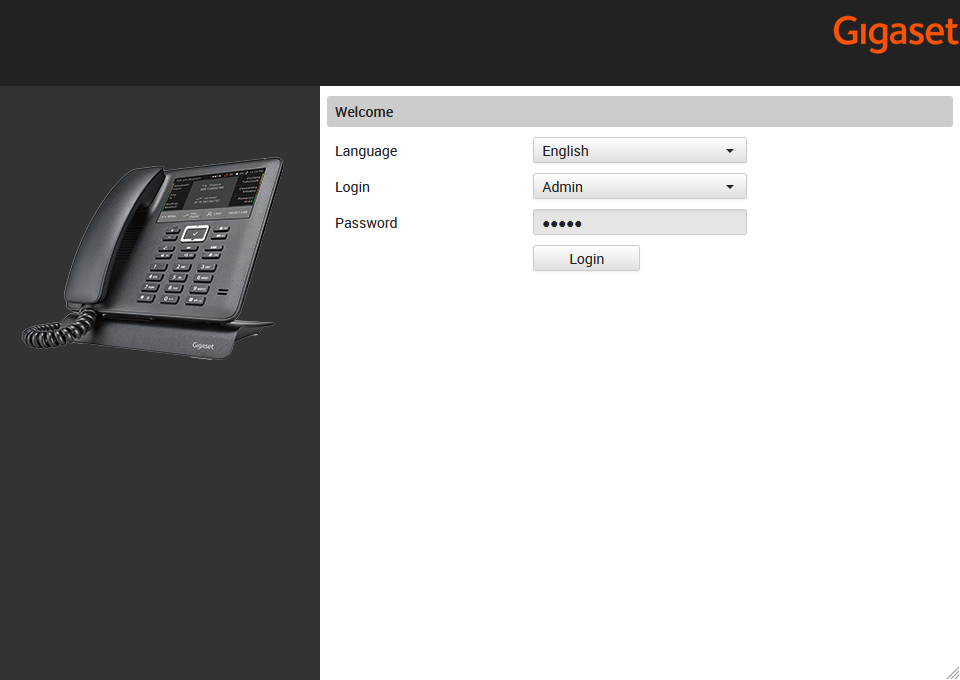
First call up the web interface of the COMfortel in your browser and log in with your admin credentials.
-
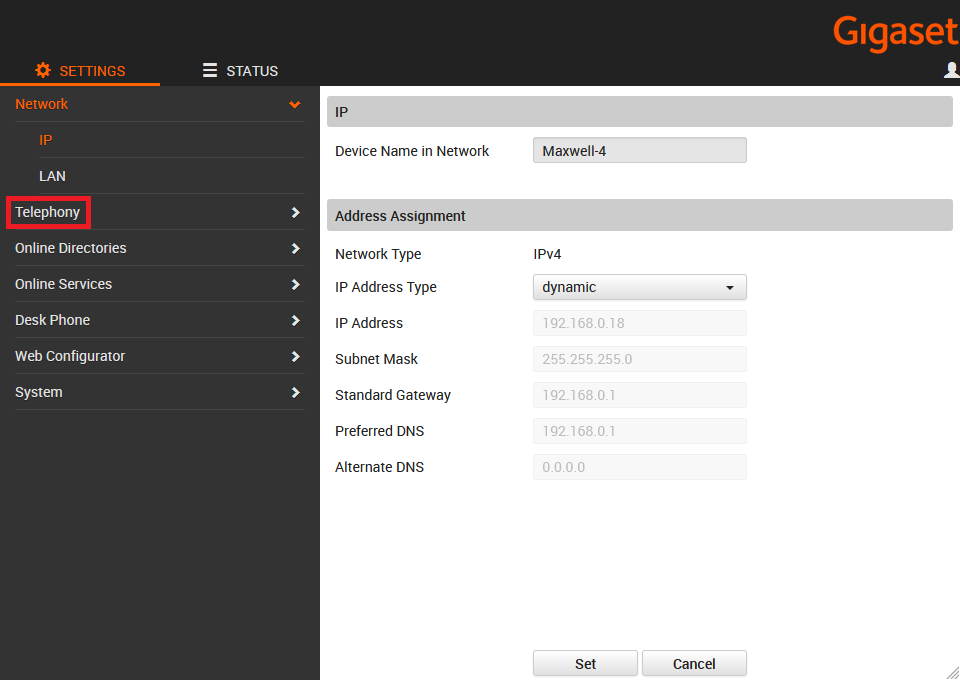
Switch to "Telephony" in the menu on the left.
-
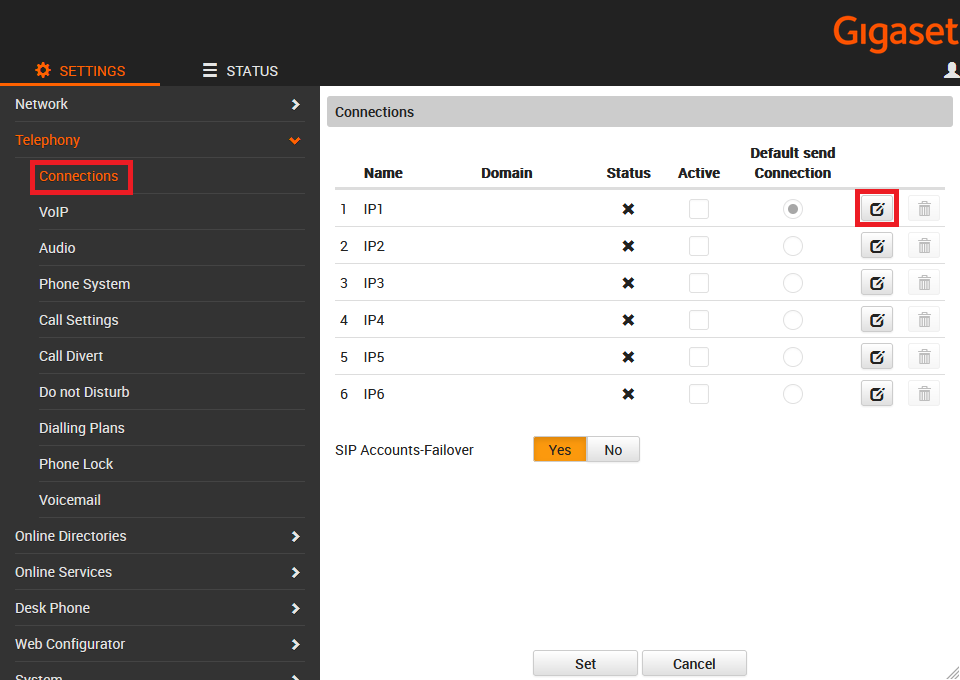
Here you will find a list of all SIP accounts created in the Maxwell. For an unused account, click the "Edit" button

-
In the next window, fill in the fields as follows with the information of your PBX and then click on "Save" at the bottom of the page.
Field Maxwell 4 Value PBX Connection name or number arbitrary Authentication name SIP user name Authentication Password SIP password Username SIP user name Display Name SIP user name Domain IP address of your PBX Proxy server address IP address of your PBX Registration Server IP address of your PBX 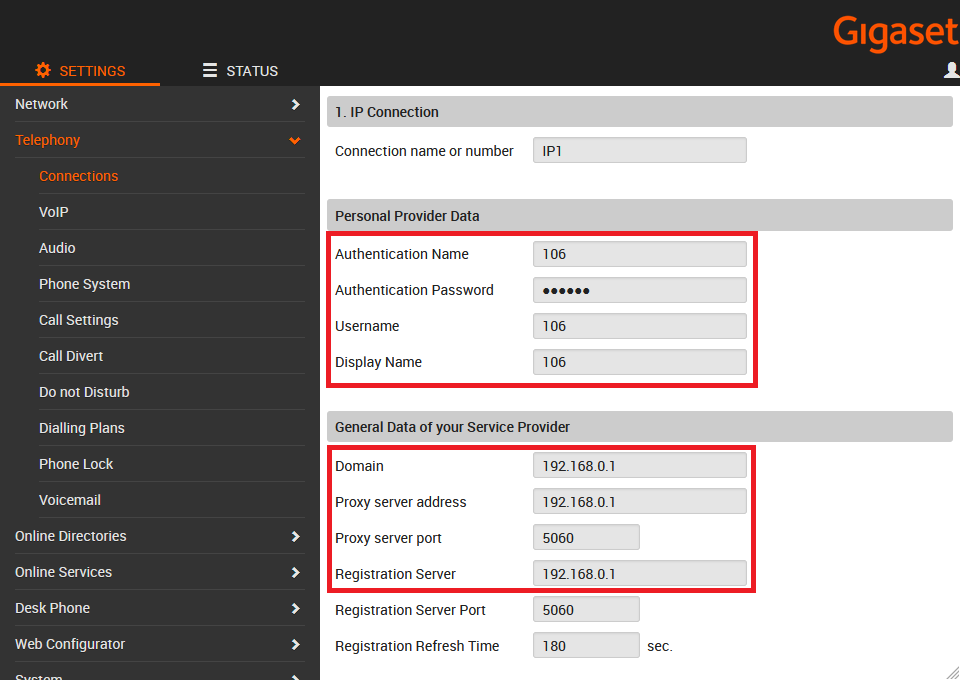
-
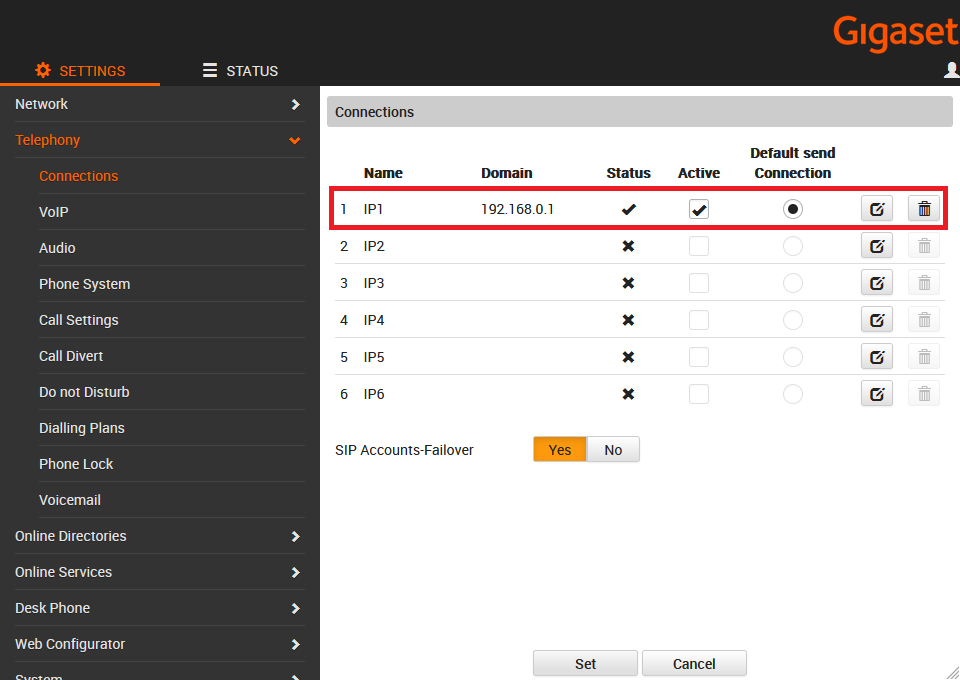
After saving your configuration, you are automatically returned to the overview. The account you just set up will be listed here. If the SIP registration was successful, a check is displayed in the "Status" column.


2. Setting up the video display for a Behnke Station's camera
-
In the menu on the left, switch to "Online Services", and click on "Door Station". Click on the
+ Addbutton.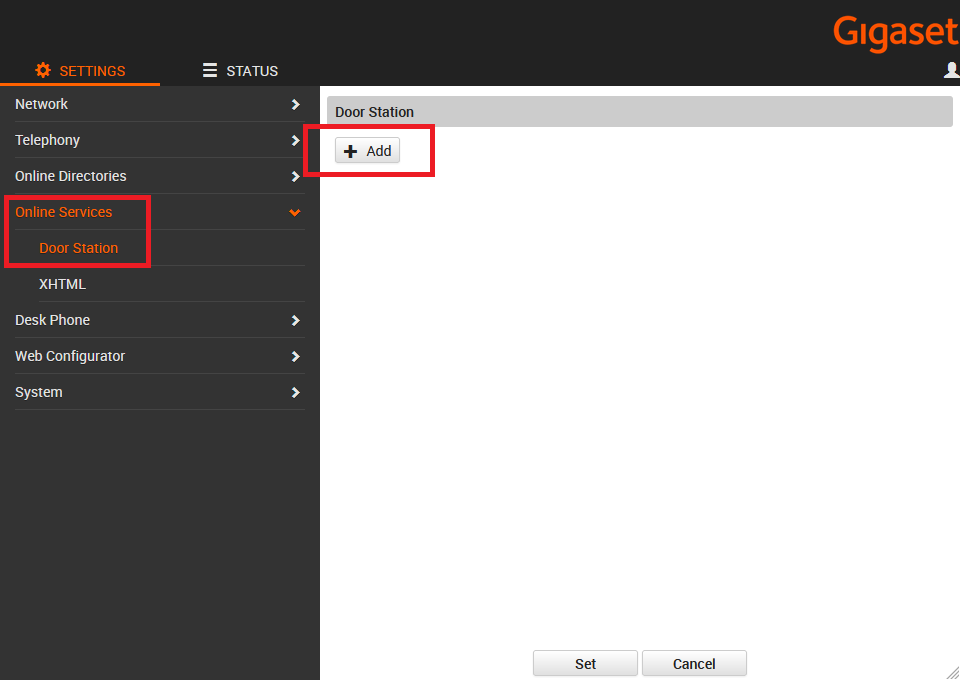
-
In the next window, fill in the fields as follows with the data of the Behnke Station and the camera. Then click on the
+ Addbutton.Field Maxwell 4 Value Name an arbitrary name for your Behnke Station SIP ID the Behnke Station's SIP ID on your PBX DTMF code DTMF code for activating the Behnke Station's relay2 Username User name for accessing the camera3 Password Password for accessing the camera3 Camera (URL) URL for the video stream3 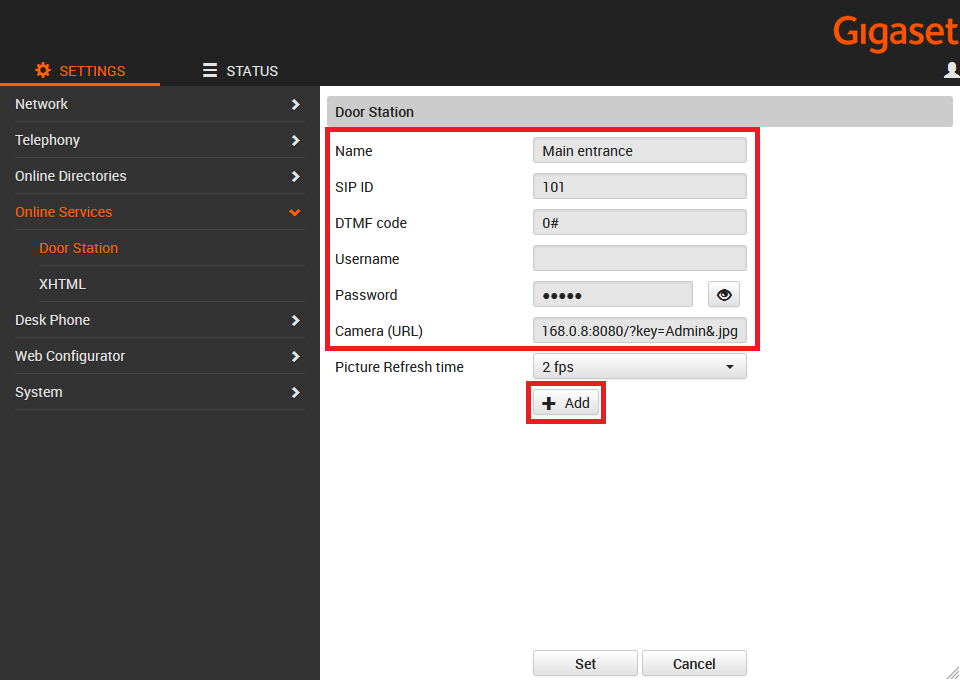
NOTE:
SIP ID: if in doubt, you can simply call the Maxwell from the Behnke Station. The name of the caller, which is then shown on the Maxwell's display, must be entered here as "SIP ID".
DTMF code: you can find the specified code on the web interface of the Behnke Station, in the "Relay" menu item, in the "Code 1" field (0 is set here as default).
User name , Password and Camera URL: You can find out the access data and the URL for the video using the following link. Please use the "URL for single images (JPEG)" here, as the Maxwell cannot retrieve a video stream directly. Camera URL and credentials -
You will then return to the overview. Click on the
Setbutton here. The configuration is now complete. When the Behnke Station calls the Maxwell, the video image and a button to open the door are automatically shown on the display.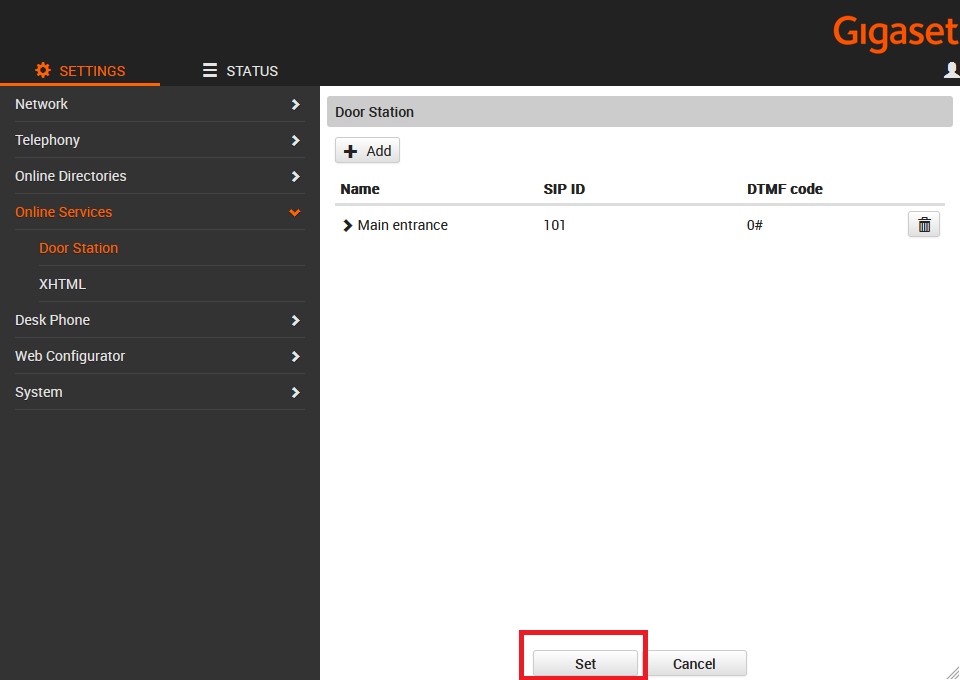


3. Direct SIP calls (for usage without PBX)
In order to be able to operate the device without a PBX, it can be registered directly with the Behnke Station using pseudo SIP registration. From the Behnke Station you can then call the Maxwell via direct SIP calling. How the SIP direct dialling is activated on the Behnke Station is described in the following configuration guide: Direct SIP calls (for usage without PBX). There you will also find a section on pseudo SIP registration.
-
To register the Maxwell with the Behnke Station, please follow the steps described above ("1. SIP registration"). Instead of the SIP registration information of your PBX, please enter the following values in the fields under "Connection":
Field Maxwell 4 Value Connection name or number an arbitrary name Authentication Name an arbitrary name Authentication Password an arbitrary password Username an arbitrary name Display name an arbitrary name Domain IP address of the Behnke Station Proxy server address IP address of the Behnke Station Registration Server IP address of the Behnke Station 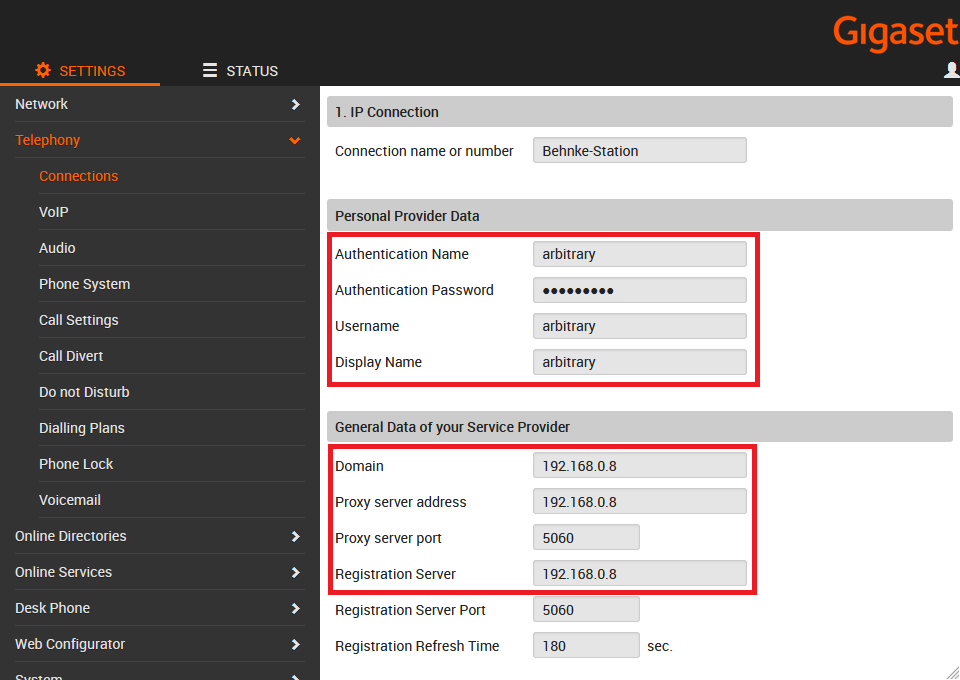
NOTE:You can specify the SIP login information ("Authentication name", "Authentication password", "Username" and "Display name") yourself. This data is only entered in the Maxwell and does not have to be stored in the Behnke Station! The Behnke Station will accept any credentials the Maxwell uses to register. -
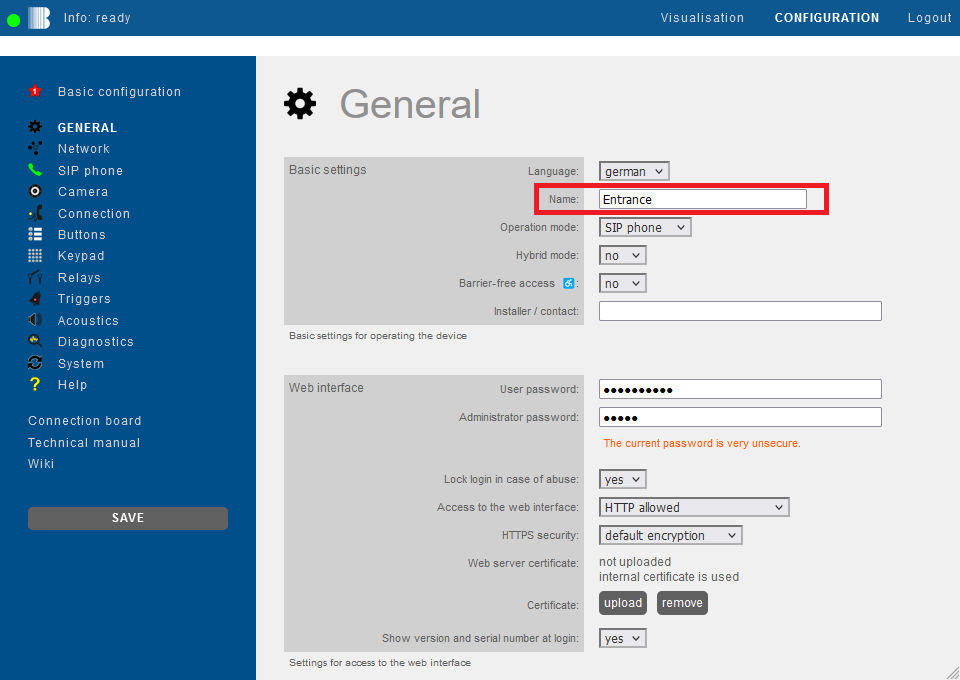
If your Behnke Station has a camera and you want to display the image on the Maxwell, please proceed as described in step 2. The only thing to note here is that you enter the name of the Behnke Station in the "SIP ID" field in the Maxwell. You can find this on the web interface of the Behnke Station in the menu item "General", in the basic settings.
-
If you want to call the Behnke Station from the Maxwell, you can simply dial any number. You will then always be connected to the Behnke Station on which you performed the pseudo SIP registration. If you have several Behnke Stations in use and you want to call the individual Behnke Stations from the Maxwell, additional steps are required.
A connection must then be created in the Maxwell for each Behnke Station under "Telephony" > "Connections" (a maximum of six connections are possible). To do this, proceed as described above. Only the IP addresses of the different Behnke Stations that are specified as "SIP server" will change.
In addition, you will have to specify dialling plans for the Maxwell. To do this, switch to "Telephony" > "Dialling Plans" in the menu on the left of the Maxwell's web interface. There you specify a phone number for each Behnke Station. For example phone number 1 for the first Behnke Station. This is entered above under "Phone number". Under "Connection" select the SIP connection with the pseudo registration for the first Behnke Station. Then click on
+ Add. Repeat the whole process for the other Behnke Stations/SIP connections, specifying a phone number for each (e.g. 2 for the second Behnke Station, 3 for the third, etc.). If you then dial 1 on the Maxwell, you will be connected to the first station. When you dial 2 you will be connected to the second station, and so on.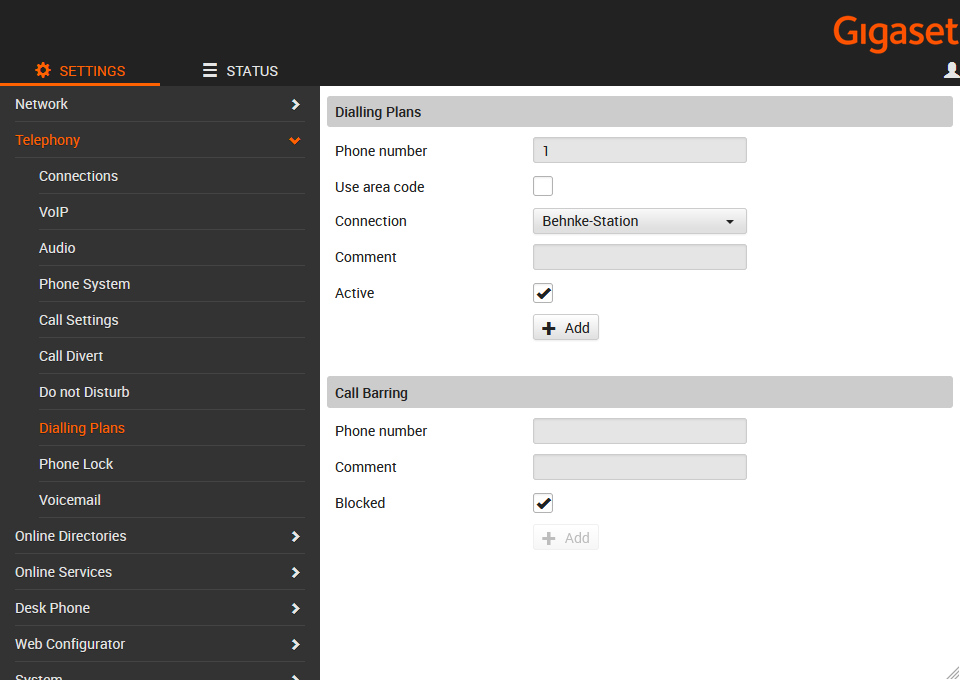


4. Trouble shooting
Please click on a problem below to get a more detailed description and a list of possible solutions.
On calls triggered by the Behnke Station the video of the camera (AXIS® camera) doesn't show up on the Maxwell's display.
In the camera, the HTTP authentication policy has been changed from "basic" to "digest". The Gigaset® only supports the authentication policy "basic". Please change the authentication policy accordingly on the web interface of the camera.