
Configuration guide: Analogue Behnke phone with one button and IP camera
NOTE:Please note that this only works with certain IP cameras! List of cameras that support this feature:
- 20-2907A-IP / 21-2907A-IP / 50-2907A-IP
- 43-9587A
- 50-1204
- 50-1207A
1. Connecting the camera


2. Configuring the analogue Behnke phone
Configuring the Behnke phone is only required if you have purchased a license for the door opening with the IP video software. In this case please make the following configuration:
*0000start configuration mode28configure button 8*71#for door opening via relay 1
Alternatively:
*72#for door opening via relay 2
Alternatively:
*73#for simultaneously activating relay 1 and 2
NOTE:Please note that when using the door opener function, you can use only seven call buttons with your Behnke phone! The camera must be connected to the Behnke phone as the eighth "button" (see connection diagram above). If you have questions about the configuration of the Behnke phone, please refer to the technical manual. The configuration of the relays is also described there!
3. Configuring the IP video software
-
Start the configuration of the IP video software and switch to the tab "IP door intercoms". There you should see a black square with the IP address of your Behnke camera in the field on the left.
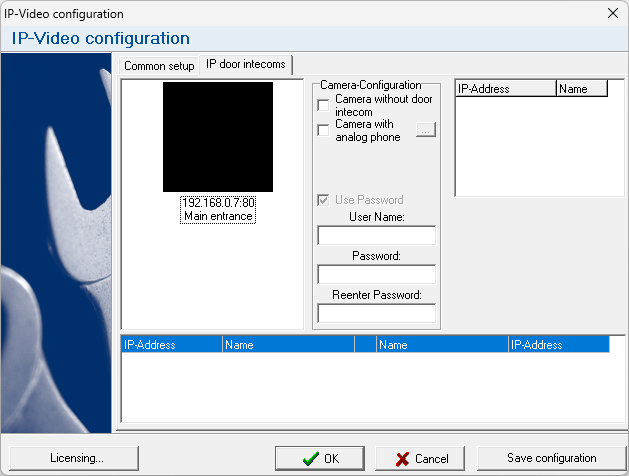
NOTE:If your camera is not listed here, please check whether you have set the exceptions for the IP video software in the Windows firewall. If that's the case, and the software still doesn't find the camera automatically then please add it manually. Manually adding a camera is described in the following configuration guide: Manually adding a camera -
Select the camera with a left-click and check "Camera with analog phone" to the right. Then enter the "Username" and "Password" for accessing the camera.
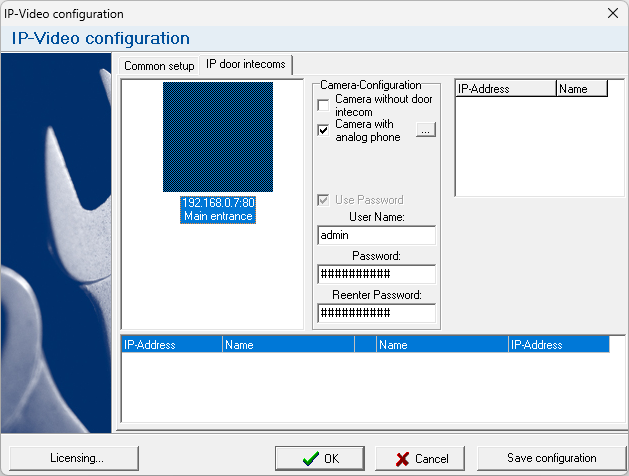
-
Then click on the "Save configuration" button below. A corresponding entry for the camera will then appear in the box below. After a few seconds, the camera preview should be displayed.
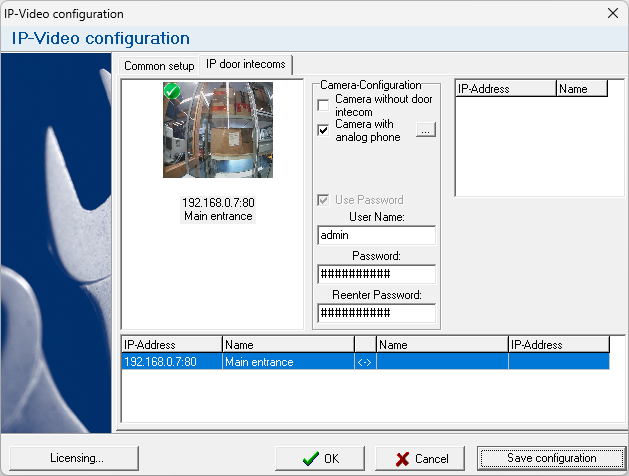


Basic configuration is now complete and the configuration window may be closed. A window with the video should now open automatically when a call is triggered at the Behnke Station. The window is displayed for the duration of the call. After hanging up, the window will close again.
4. FAQ
Note
There is currently no content available here yet. As soon as content is planned, the pages will be marked as planned. Feel free to use the Report a problem function on the right in the toolbar to request new content, ask questions, or report anything that is unclear.
You can also give feedback after every heading, so that we can continuously improve our wiki:
- Move your mouse over the heading
- A small ? appears
- Click the small ?
We welcome every suggestion, every correction and every idea for improvement.