
Configuration guide: Adding a camera manually
1. Configuring the IP video software
-
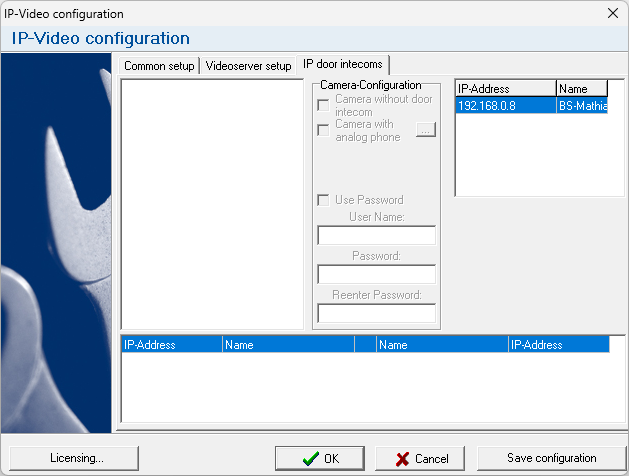
Start the configuration of the IP video software and switch to the tab "IP door intercoms".
-
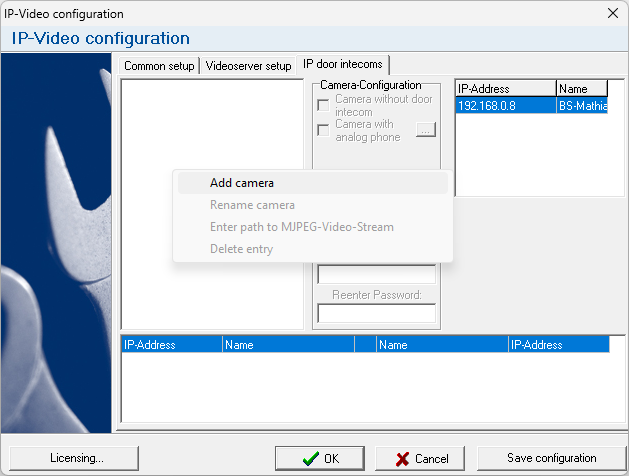
Right-click the white box on the left to open the context menu. Select "Add camera".
-
The window "Add camera" opens. Enter an arbitrary name, the IP address of the camera and the port for the MJPEG stream. Also, please provide the correct camera type below. Using your camera's MAC address, you can find out the port number and camera type with the table below:
| Camera type | Port | MAC address | | --------------------- | ---- | ----------------------------------------------------------- | | Behnke-Station Camera | 8080 | only for newer Behnke Stations with system camera, i.e. with USB camera or with an IP camera integrated as a system camera (see the web interface of the Behnke station > Network > IP camera > "integration as") | | AXIS®/B-Smart Camera | 80 | AC:CC:8E:XX:XX:XX
00:40:8C:XX:XX:XX
B8:A4:4F:XX:XX:XX | | Behnke IP-Camera | 80 | 00:50:C2:XX:XX:XX | | Behnke Smart-Camera | 80 | F8:1C:E5:FX:XX:XX |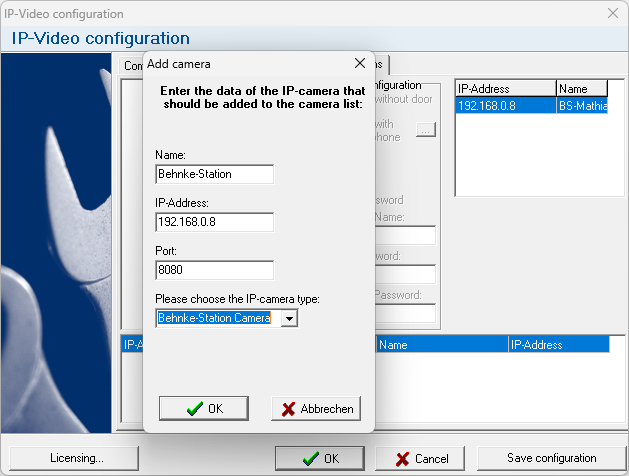
-
Then click the "OK" button. A black square will appear in the overview on the left-hand side.
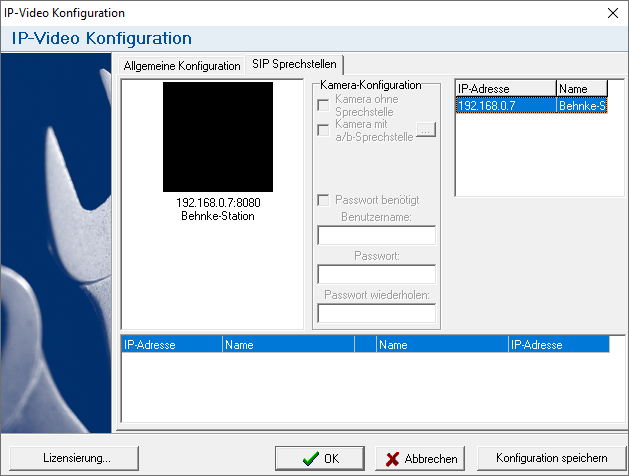


The camera has now been added and can be further set up in the IP video software. For further configuration, please refer to the software's manual, or follow the steps in one of the configuration guides:
- Behnke Station, camera and IP video software in the same IP address range
- Behnke Station and camera in different IP address range than IP video software
- IP video software in Terminal server environment
- Direct SIP calls and IP video software
- Behnke Station in operation mode "analogue phone"
- Manually adding a camera
- Analogue Behnke phone with one button and IP camera
- Analogue Behnke phone with multiple buttons and IP camera
2. FAQ
Note
There is currently no content available here yet. As soon as content is planned, the pages will be marked as planned. Feel free to use the Report a problem function on the right in the toolbar to request new content, ask questions, or report anything that is unclear.
You can also give feedback after every heading, so that we can continuously improve our wiki:
- Move your mouse over the heading
- A small ? appears
- Click the small ?
We welcome every suggestion, every correction and every idea for improvement.