
Configuration guide RingCentral®
1. Configuration guide
This configuration guide describes how to set up a Behnke Station as a SIP extension of a RingCentral® cloud PBX. We are assuming that the basic configuration of the RingCentral® system has already been done, and we will only describe the steps required to register the Behnke Station with RingCentral®. We also assume that the Behnke station has already been integrated into the network and can be accessed via the IP address in a browser. It is assumed that the Behnke-Station is already set up to the extent that access to the web interface is possible. If this is not the case, please follow the instructions provided with your base electronics (manuals) and refer to the technical manualRecently updated — within the last 72 hours to complete the basic setup.
1.1. Configuring the Behnke Station
-
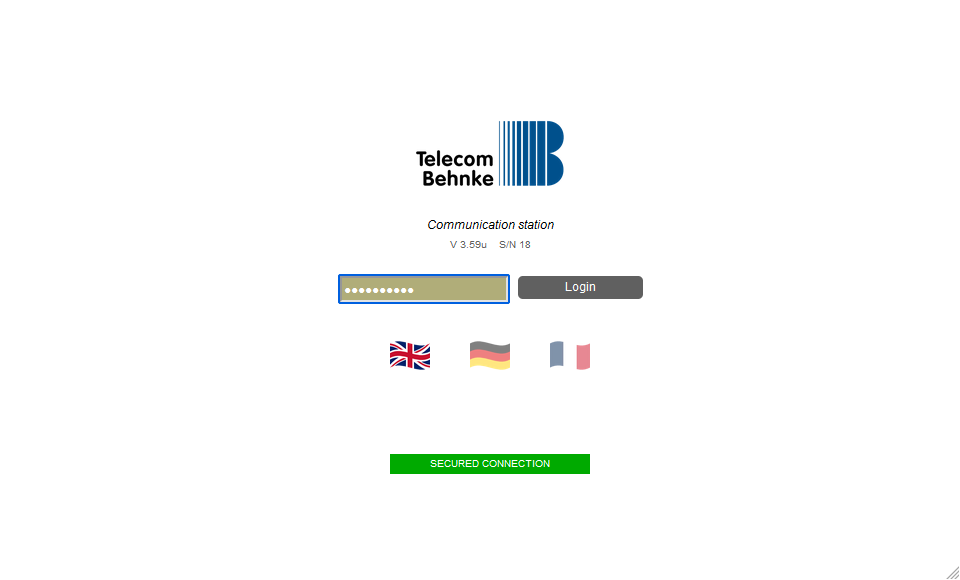
Open a new tab in your browser, enter the IP address of the Behnke Station in the address bar and log in.
-
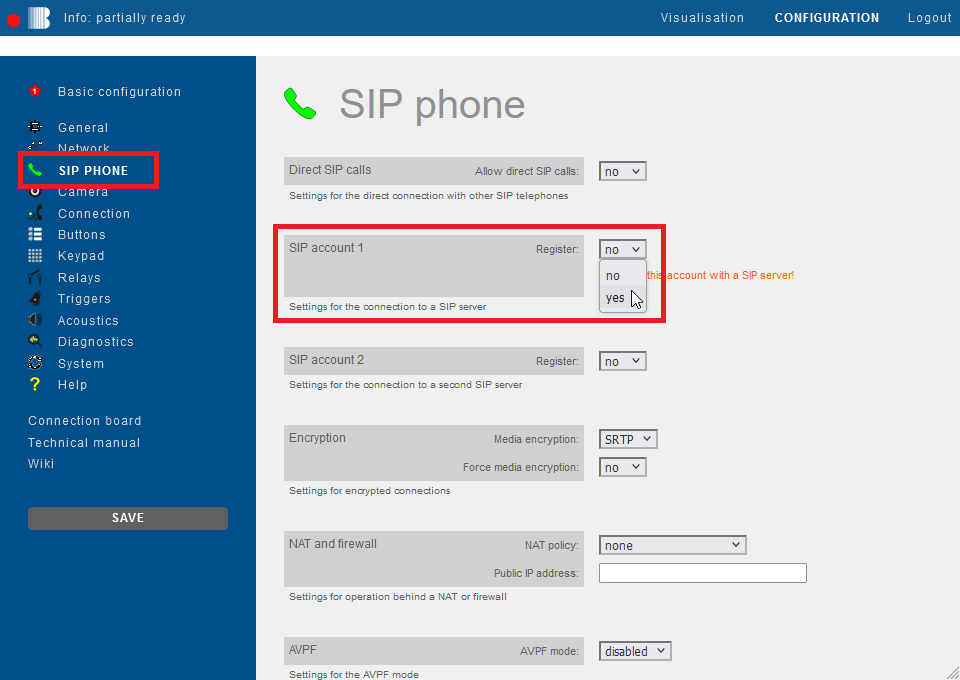
Click on "SIP Phone" in the menu. Scroll down to "SIP account 1" and select the option "yes" for "Register".
-
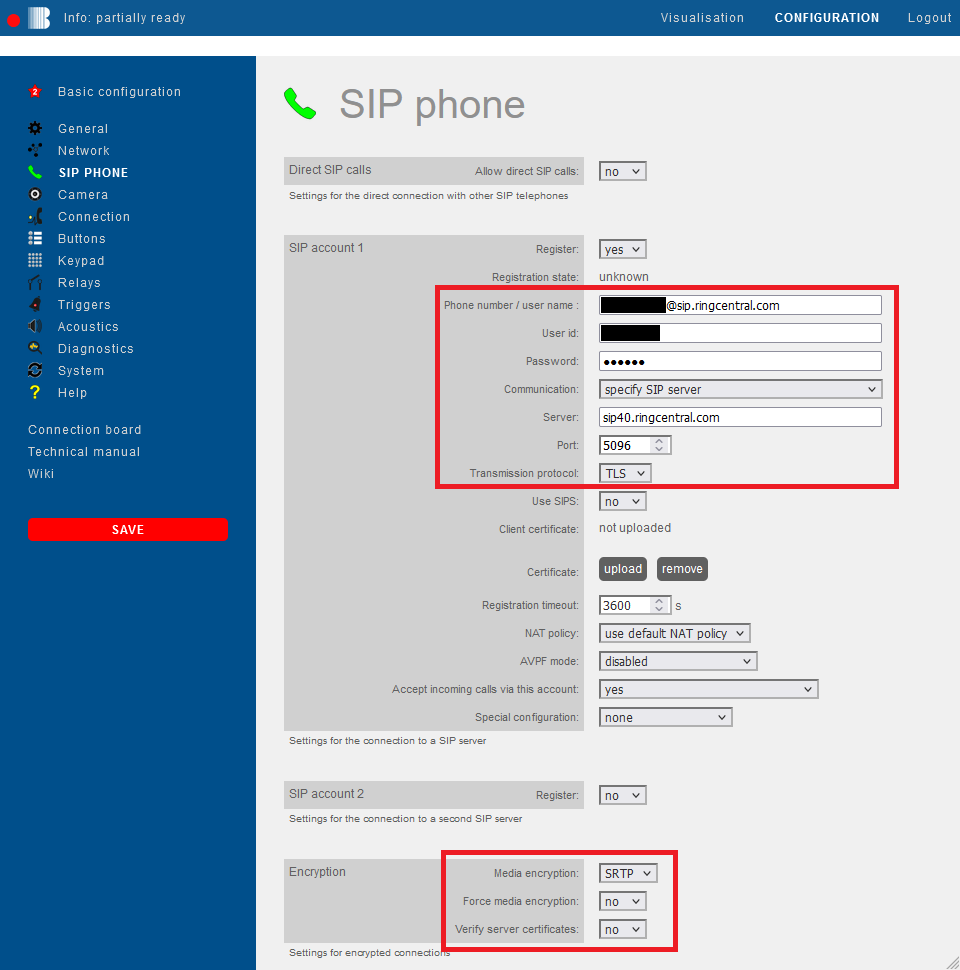
Then fill in the fields with your RingCentral® SIP credentials as follows and click "Save" on the left.
Field Behnke Station Value RingCentral® Phone number / user name User name with "@sip.ringcentral.com" User ID Auth-ID Password Password Server sip40.ringcentral.com Port 5096 Transmission protocol TLS Media encryption SRTP Force media encryption no Verify server certificates no If the registration was successful, the "Registration state" changes to registered.
-
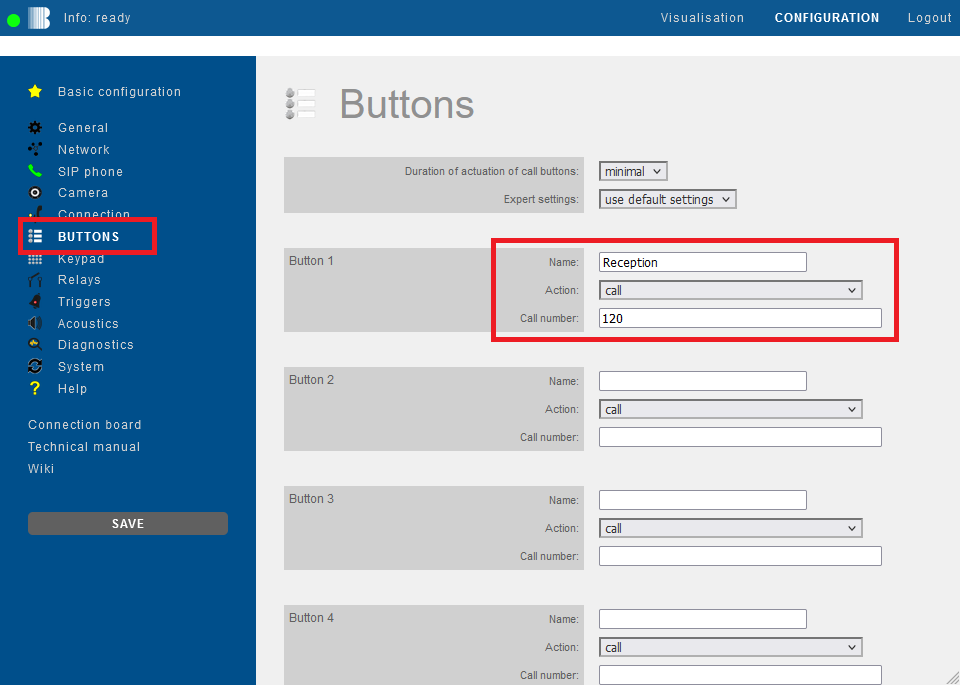
Then click "Buttons" in the menu on the left. For the desired call button enter the extension number or phone number that is to be called when the button is pressed. Then click "Save" on the left.
-
Open your browser
-
Access the Behnke Station web interface
-
Log in


- Click the

- Navigate to the SIP Account 1 or SIP Account 2 section.
- Set the Register option to yes


- Use the assignments from the following table and enter the information in the corresponding input fields (in the SIP Account 1 section, if applicable SIP Account 2) of your Behnke station.
- Open your browser
- Go to the web interface of the Behnke Station
- Log in

- Click in the sidebar to save the configuration
- Wait a moment until the Behnke Station is reachable again
- If the registration is successful, the Registration state option changes to the value registered
- If this is not the case, please check the previous steps again

- Click the menu item in the sidebar to save the configuration
- Navigate to the section of the button to be configured, e.g. Button 1
- Set the Action option to the value Call
- In the input field of the Phone number option, enter the number that should be called when the button is pressed
- Click in the sidebar to save the configuration

The configuration of the Behnke Station was last updated for version 5.26.
2. Trouble shooting
Note
There is currently no content available here yet. As soon as content is planned, the pages will be marked as planned. Feel free to use the Report a problem function on the right in the toolbar to request new content, ask questions, or report anything that is unclear.
You can also give feedback after every heading, so that we can continuously improve our wiki:
- Move your mouse over the heading
- A small ? appears
- Click the small ?
We welcome every suggestion, every correction and every idea for improvement.