
Configuration guide Grandstream® GXV3380
This configuration guide describes how to set up a Grandstream® GXV3380 as an extension of your PBX and how to automatically display the Behnke Station's video on calls. We assume that the basic configuration of the Grandstream® has already been made and that the device is accessible via the IP address in a browser. We only describe how to register the Grandstream® with your PBX and setting up the video display. We also assume that the Behnke Station has already been set up as an extension of your PBX. It is assumed that the Behnke-Station is already set up to the extent that access to the web interface is possible. If this is not the case, please follow the instructions provided with your base electronics (manuals) and refer to the technical manualRecently updated — within the last 72 hours to complete the basic setup.
1. SIP registration
NOTE:This is just an example of the SIP registration. Registration and the required parameters can vary depending on your PBX or SIP provider. If in doubt, please contact your PBX's support.
-
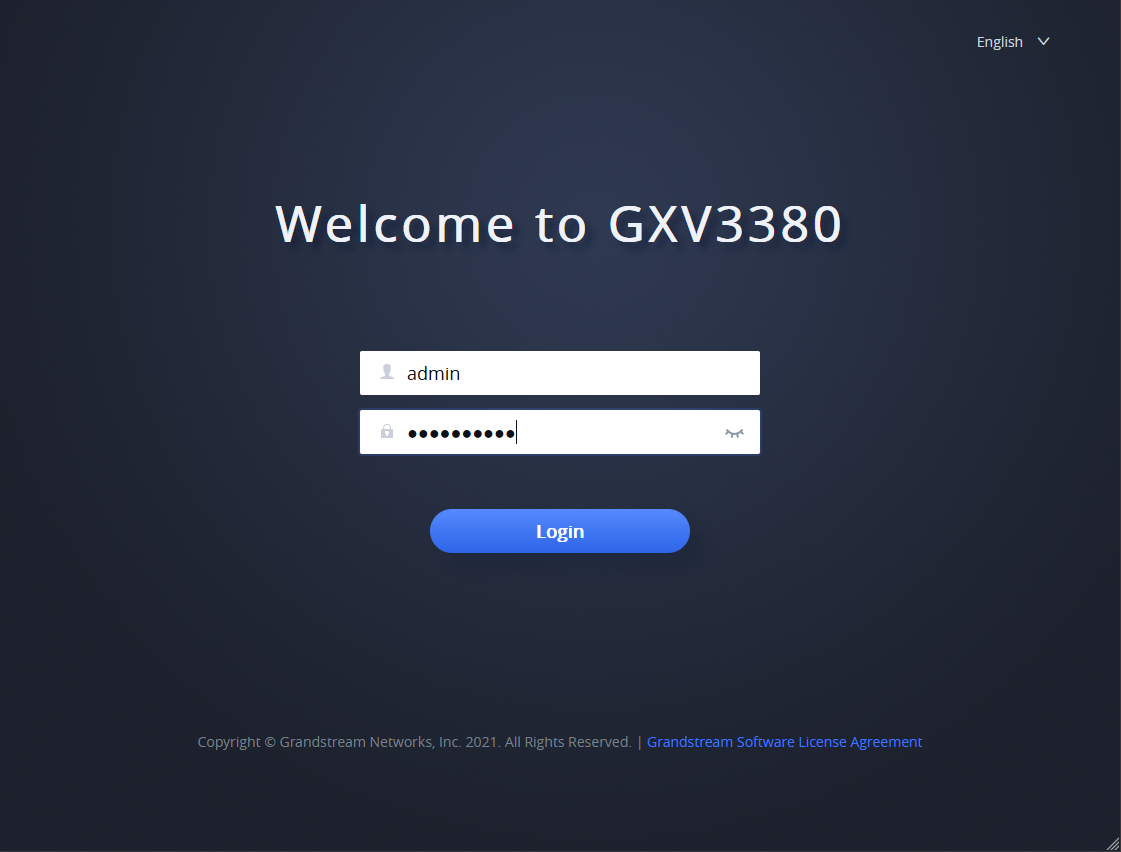
First start the web interface of the Grandstream® in your browser and log in with your admin credentials.
-
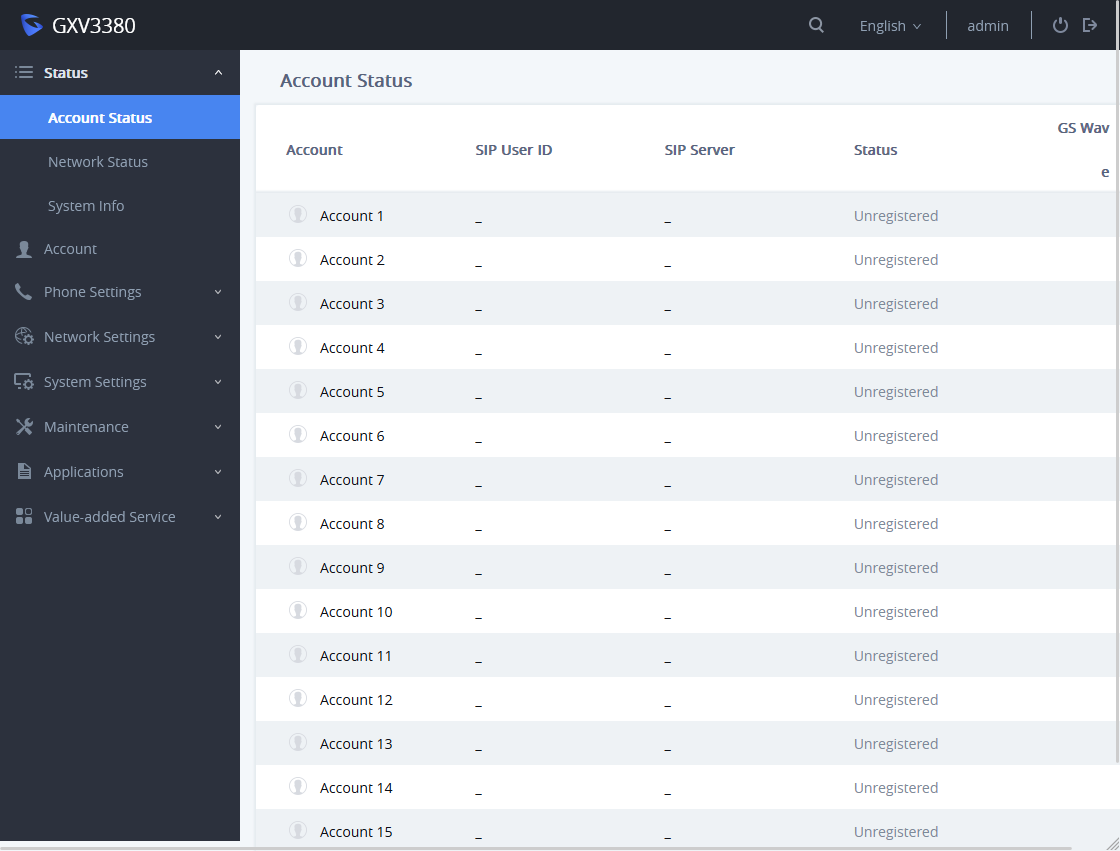
Then click "Account" in the menu on the left.
-
Select an account that has not yet been used and fill in the fields with the SIP registration information for your PBX. Also, make sure "Account Active" is checked at the top. Then click "Save" at the bottom.
Field GXV3380 Value PBX Account Name an arbitrary name SIP Server IP address of your PBX SIP User ID SIP ID SIP Authentication ID SIP ID SIP Authentication Password SIP password Display Name an arbitrary name Outbound Proxy IP address of your PBX 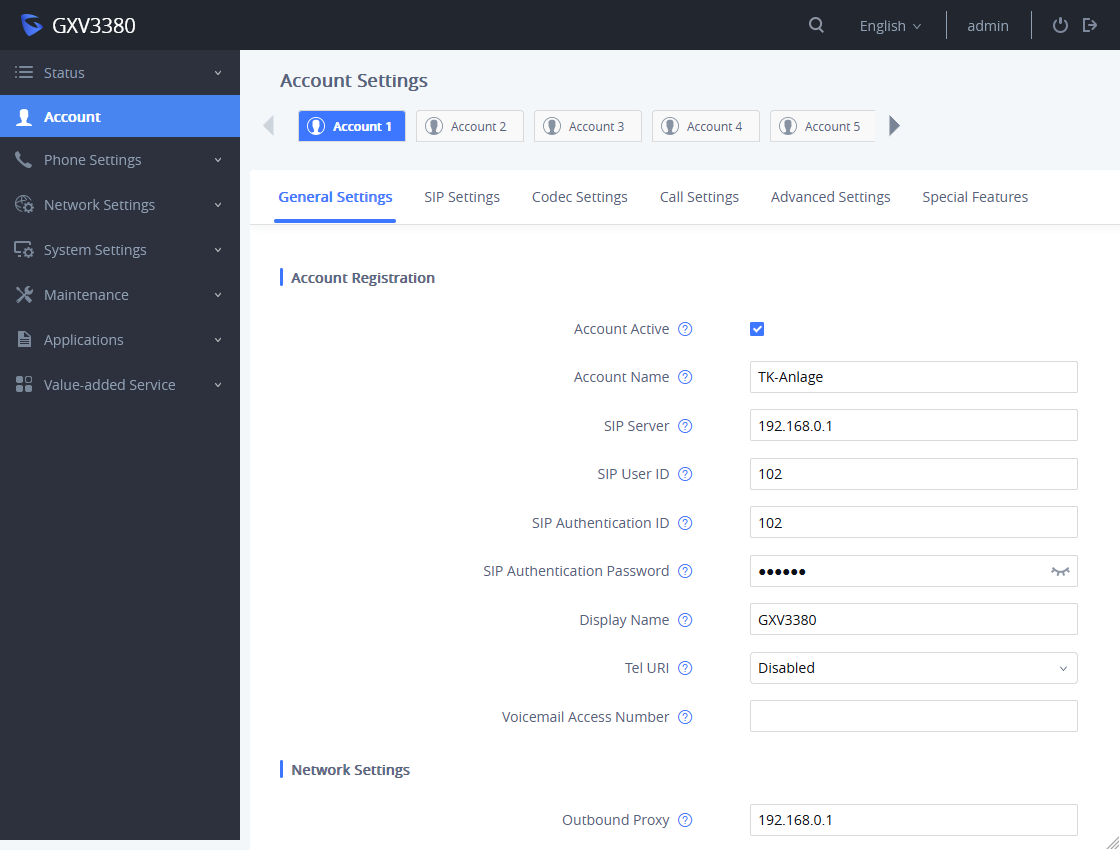


2. Setting up the video display for Behnke Stations with a system camera (SIP video calls)
NOTE:This function can only be implemented with Behnke Stations that have a USB camera or an IP camera integrated as a system camera. If you are using a standalone IP camera, please skip to step 3.
If the Behnke station and the GXV3380 are registered with your PBX or you are using direct IP calls, you just have to trigger a call at the Behnke station. After answering the call on the GXV3380, the video is displayed automatically. It is also possible to display the video on the GXV3380 before the call is even answered (early media). This feature is enabled by default on the Behnke Station. To enable it on the GXV3380 please do as follows:
The "Auto Preview" parameter must be set to "Yes with ringing" in the created "Account" under "Call Settings".

NOTE:Please note that this function can only be implemented with direct calls and on PBXs that support video as early media. If your PBX does not support this feature, you have the option of initiating a direct SIP call to the GXV3380 from the Behnke Station. The call is then not set up via the PBX, but directly from the Behnke Station to the GXV3380. Please note that in this case no PBX settings apply to this call (e.g. call forwarding). How the direct call is set up on the GXV3380 and on the Behnke Station is described in step 2 above in this configuration guide.
3. Setting up the video display for Behnke Stations with display camera (audio and video separated)
NOTE:This function is intended for Behnke Stations that do not have a USB camera or an IP camera integrated as a system camera. In these cases, set up the video display as described in point 2 above. If you are using a standalone IP camera, the video display is set up as described in the steps below.
-
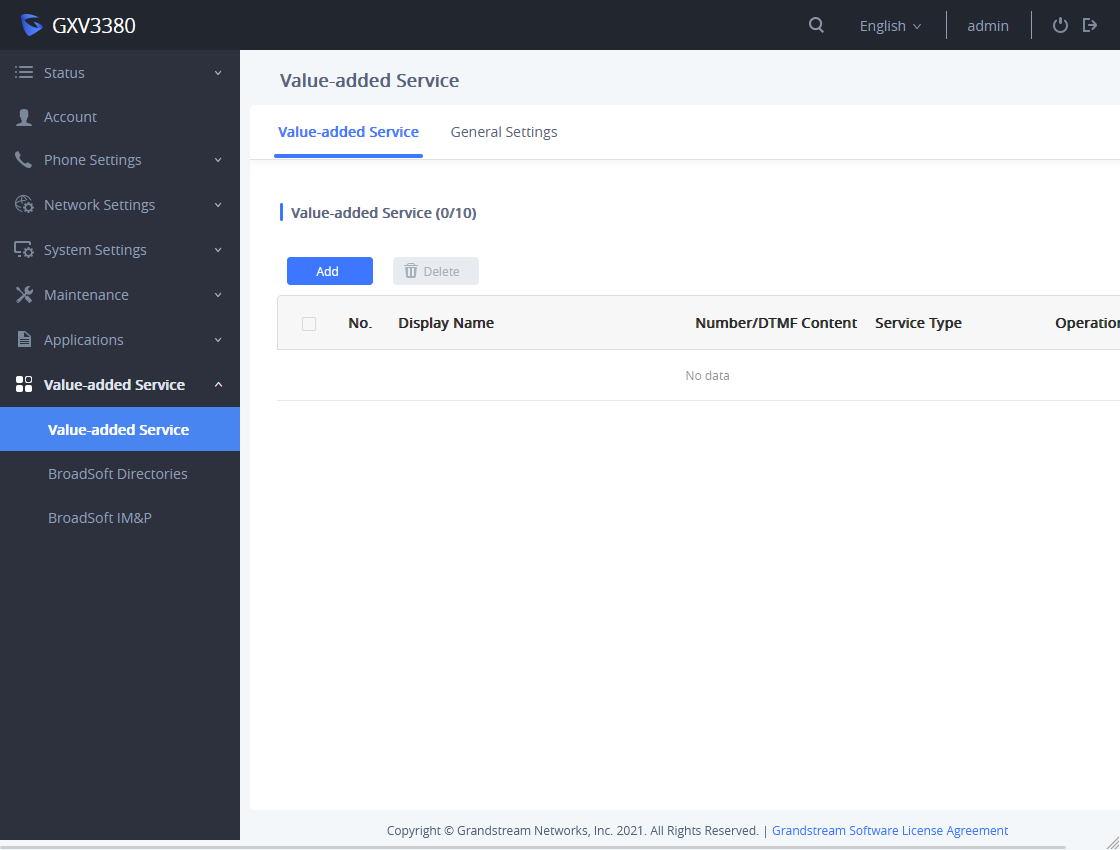
Open the Grandstream® web interface and select "Value-added Service" from the menu on the left. Click on the "Add" button here.
-
Then fill in the fields with the following values, and then click on the "Configure" button at "System Number".
Field Grandstream® Value Service Type Door System Door System Type Baudisch Display Name an arbitrary name for your Behnke Station Access Password DTMF Code for activating the relay (Default 0#) 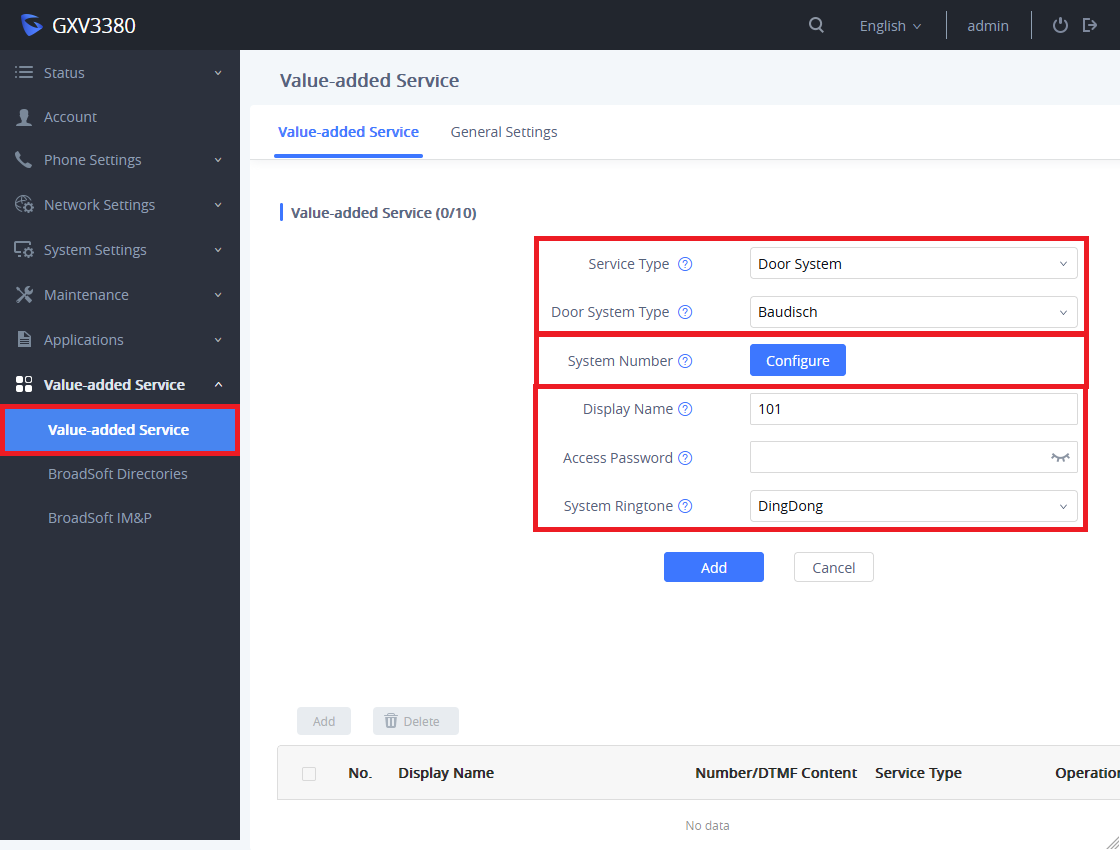
-
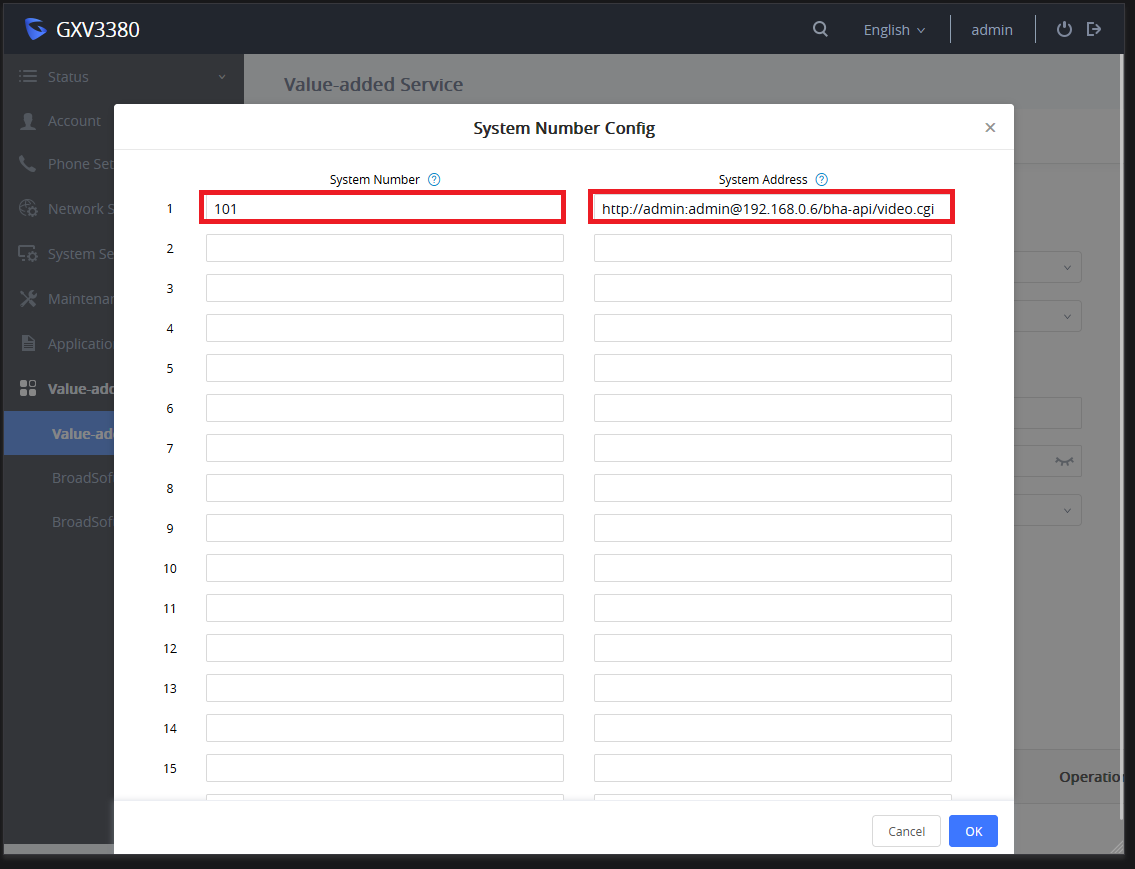
After clicking on "Configure" a new window will open. Enter the extension of the Behnke Station in the "System Number" field. For "System Address" enter the URL for the video of the camera. Then click on the "OK" button at the bottom right.
NOTE:
- You can find out the extension of the Behnke Station by triggering a call to the Grandstream® from the Behnke station. The extension of the Behnke Station is then shown on the display of the Grandstream® as the caller's number.
- You can find out the credentials and the URL for the video via the following link. Please use the "URL for MJPG stream" here. Camera URL and credentials -
You are automatically returned to the previous window. Click on the "Add" button here.
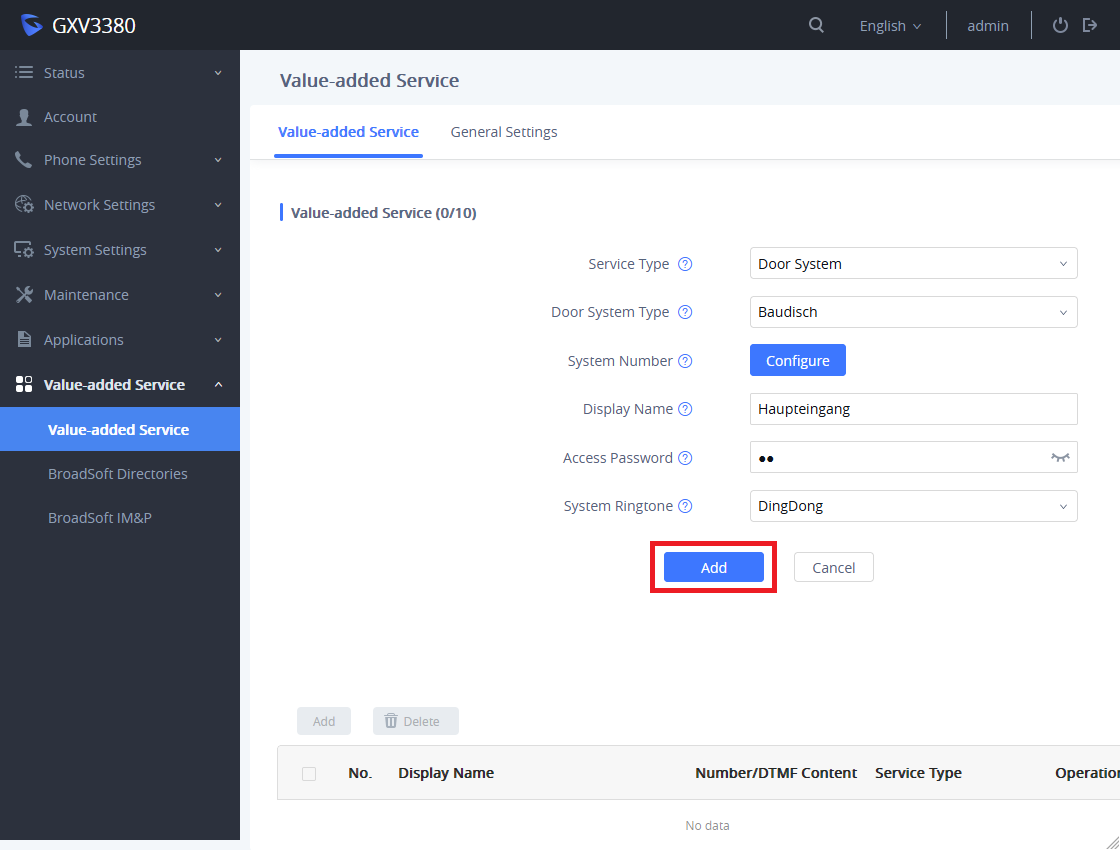


This completes the video display setup. When calling from the Behnke station, the video should automatically appear on the display of the Grandstream®. The door opener relay of the Behnke Station can be activated during a call using the button at the bottom left.
4. Direct SIP calls (for usage without PBX)
In order to be able to operate the device without a PBX, direct IP dialling can be activated. The steps described above are then omitted.
To do this, simply click on "Phone Settings" in the menu on the left, and then select "Call Settings". Activate the option "Enable Direct IP Call Mode" here. If desired, the "Enable Quick IP Call Mode" option can also be activated.

The Grandstream® can then be called from the Behnke Station via direct IP dialling, as well as making direct IP calls. How IP direct calls are set up on the Behnke Station is described in the following configuration guide: Direct SIP calls (for usage without PBX).
In order to initiate a direct IP call on the Grandstream®, simply dial the IP address of the Behnke Station, replacing the dots of the IP address with *. If you have enabled the "Enable Quick IP-Call Mode" option, it is sufficient if you dial the last octet of the IP address (the digits after the last dot of the IP address). For example, if the IP address to be dialed is 192.168.0.7, you only have to dial "7". If the IP address is 192.168.16.141, you only have to dial "141".
When dialling an IP address, you have to select the option "IP call" in the dialling window of the Grandstream® in order to be able to trigger a direct IP call.

5. Trouble shooting
Note
There is currently no content available here yet. As soon as content is planned, the pages will be marked as planned. Feel free to use the Report a problem function on the right in the toolbar to request new content, ask questions, or report anything that is unclear.
You can also give feedback after every heading, so that we can continuously improve our wiki:
- Move your mouse over the heading
- A small ? appears
- Click the small ?
We welcome every suggestion, every correction and every idea for improvement.