
Configuration guide Microsoft® Teams®
1. General information
The Behnke station cannot be operated with teams on its own. A gateway (session border controller) is required here. This has be connected to Teams via "Direct Routing". The Behnke Station is then registered with this session border controller.
Information about direct routing in the Microsoft® documentation:
https://docs.microsoft.com/en-us/microsoftteams/direct-routing-landing-page
List of compatible session border controllers:
https://docs.microsoft.com/en-us/microsoftteams/direct-routing-border-controllers
ATTENTION:This information was provided to us by customers and cannot be verified by us! Some customers use SBCs from AudioCodes®. We do not know whether it also works with solutions from other manufacturers!
In addition, the Dutch company CyberTwice B.V. is offering a service with which you can connect your Behnke Station to Teams. You can obtain further information directly from the service provider. The function of the Behnke Station with the offered service has been verified by CyberTwice B.V.
2. SIP registration with AudioCodes® SBC
2.1. Configuring the AudioCodes® SBC
Please note the following document from AudioCodes®:
https://www.audiocodes.com/media/agbhnv01/user-registration-with-sbcs-configuration-note.pdf
2.2. Configuring the Behnke Station
ATTENTION:The following information was kindly provided to us by a customer. Please note that we cannot guarantee accuracy and correctness. The settings shown here may differ during your installation and are intended as a guide only.
-
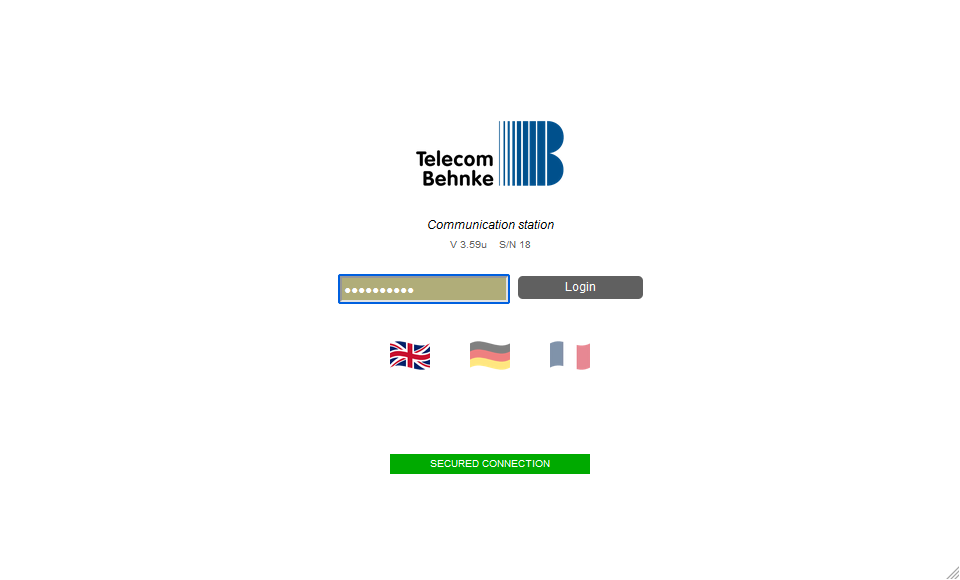
Open a new tab in your browser, enter the IP address of the Behnke Station in the address bar and log in.
-
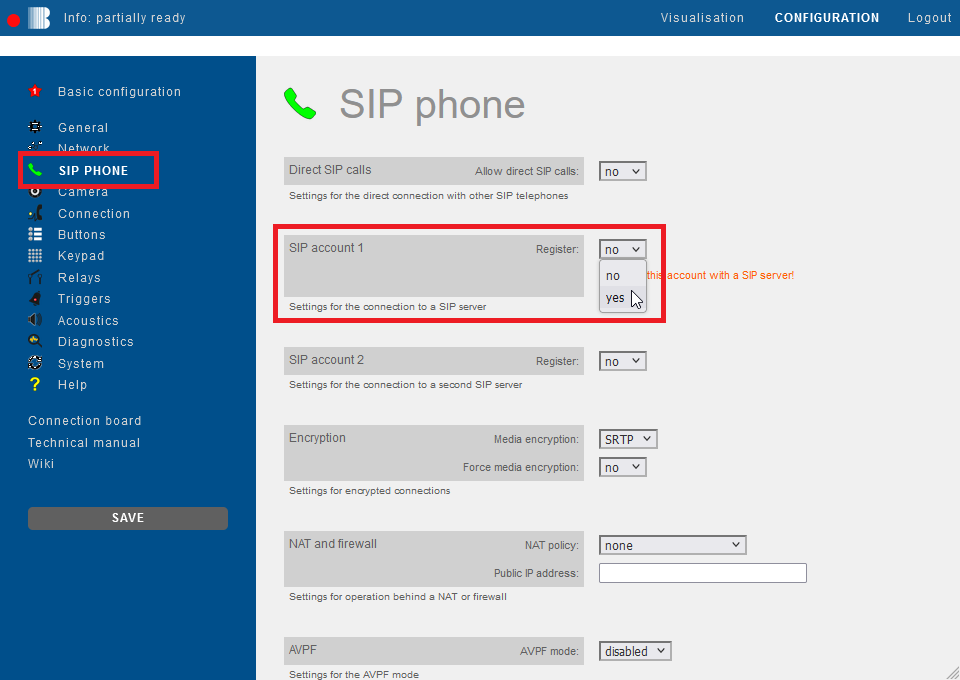
Click on "SIP Phone" in the menu. Scroll down to "SIP account 1" and select the option "yes" for "Register".
-
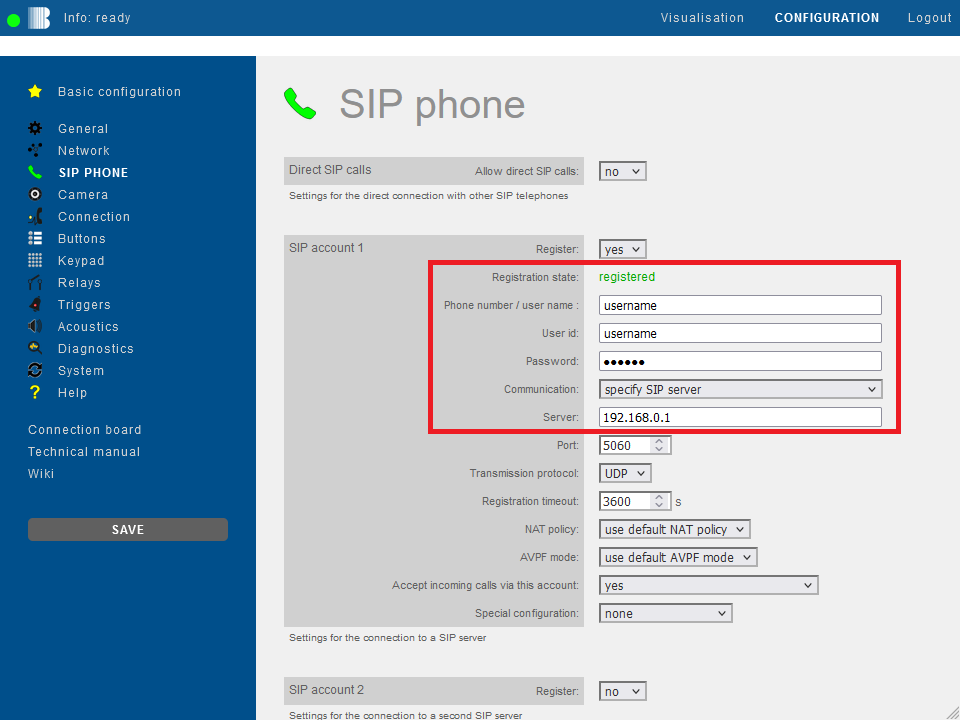
Then fill in the fields with your 3CX® SIP credentials as follows and click "Save" on the left.
Field Behnke-Station Value AudioCodes® Phone number/user name username User ID username Password password Server AudioCodes®' IP address If the registration was successful, the "Registration state" changes to registered.
-
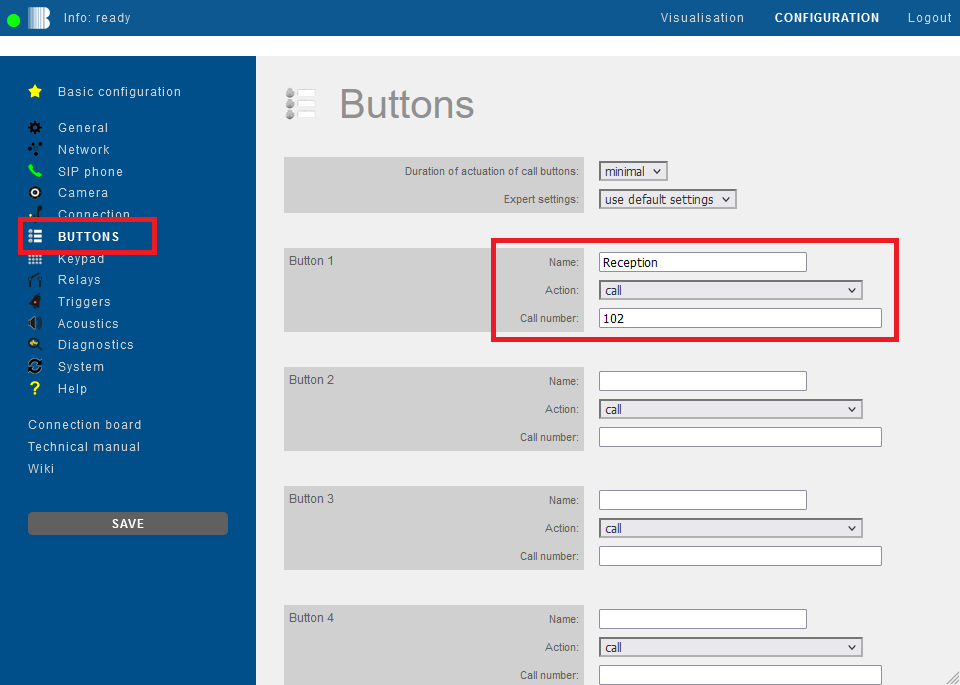
Then click "Buttons" in the menu on the left. For the desired call button enter the extension number or phone number that is to be called when the button is pressed. Then click "Save" on the left.
-
Open your browser
-
Access the Behnke Station web interface
-
Log in


- Click the

- Navigate to the SIP Account 1 or SIP Account 2 section.
- Set the Register option to yes


- Use the assignments from the following table and enter the information in the corresponding input fields (in the SIP Account 1 section, if applicable SIP Account 2) of your Behnke station.
- Open your browser
- Go to the web interface of the Behnke Station
- Log in

3. Trouble shooting
Note
There is currently no content available here yet. As soon as content is planned, the pages will be marked as planned. Feel free to use the Report a problem function on the right in the toolbar to request new content, ask questions, or report anything that is unclear.
You can also give feedback after every heading, so that we can continuously improve our wiki:
- Move your mouse over the heading
- A small ? appears
- Click the small ?
We welcome every suggestion, every correction and every idea for improvement.