
Configuration guide for Linphone® Desktop for Microsoft® Windows® (on the Linphone® Free SIP Service)
This setup guide describes how to set up Linphone® Desktop on a Windows® computer and automatically display the video image in calls from a Behnke Station. Here we limit ourselves to registering the Linphone® with the Linphone® Free SIP Service and setting up the video display. We assume that you have already created a Linphone® account for the app. We also require that the Behnke station has already been registered with the Linphone® Free SIP Service. You can find setup help on how to register the Behnke Station with the Linphone® Free SIP Service at the following link: Linphone® Free SIP Service It is assumed that the Behnke-Station is already set up to the extent that access to the web interface is possible. If this is not the case, please follow the instructions provided with your base electronics (manuals) and refer to the technical manualRecently updated — within the last 72 hours to complete the basic setup.
1. Setting up the app
-
Download Linphone® Desktop from the Linphone® website: https://www.linphone.org/
-
After installation, start the software and check "I accept Belledonne Communications' terms of use and privacy policy". Then click "Use a Linphone Account".
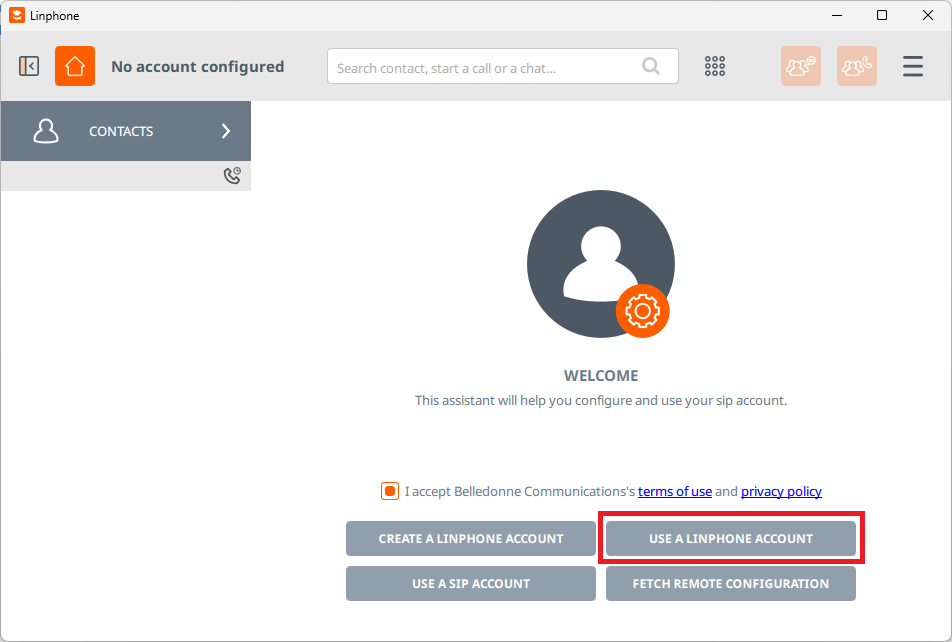
-
Then, if necessary, enter a "Display name" and enter the "Username" and password of your Linphone® account. Then click on the
Usebutton below.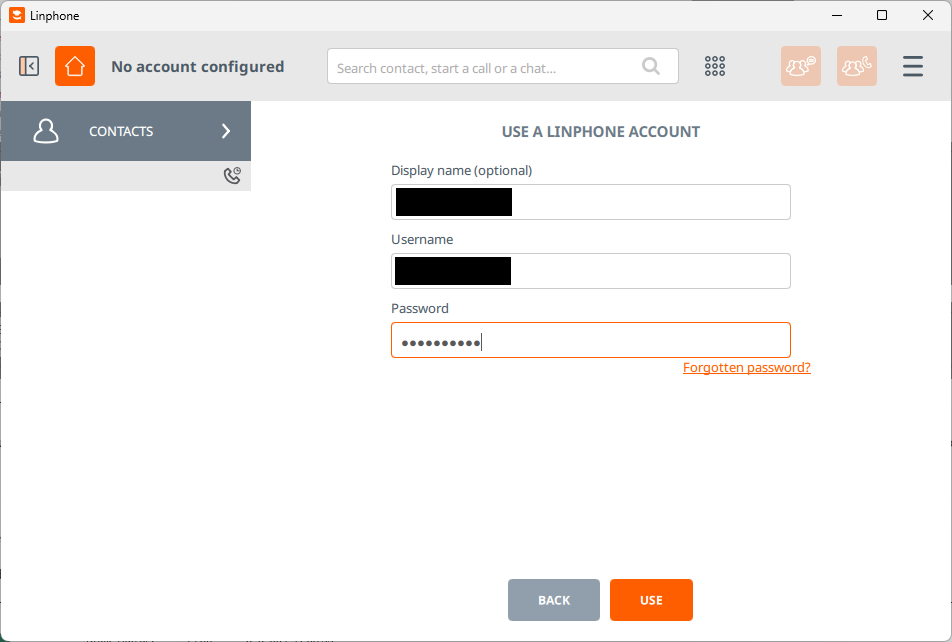


The setup is now complete. If your Behnke Station has a USB camera or an IP camera integrated as a system camera, you can now initiate SIP video calls from the Behnke Station to the Linphone® app. You can find a configuration guide for the Behnke Station on the Linphone® Free SIP Service at the following link: Linphone® Free SIP Service
2. SIP direct calls (operation without a PBX)
It is possible to use the Behnke Station and the Linphone® app without a PBX or the Linphone® SIP service.
In this case, you simply trigger a direct call from the Behnke Station to the Linphone® app. To set up the direct call, you need the IP address of the computer and the SIP port number of the Linphone® app. The steps shown above for registering with the Linphone® Free SIP Service are then no longer necessary. It should be ensured that the IP address of the computer does not change subsequently. So if you use a DHCP server in your network, please always assign the same IP address to the computer. Alternatively, simply assign a static IP address in the computer's network settings. You set the SIP port number of the Linphone® app in the app settings by clicking on "Network". By default the port number "5060" is used here. You can change these if necessary.
How to set up a direct call at the Behnke Station is described in the following setup example: Direct SIP calls (for usage without PBX).
To call the Linphone® app, enter sip:<IP address of the computer>:<SIP port of the Linphone® app> as the phone number in the Behnke station. E.g.: sip:192.168.178.86:37775. If the Linphone® app uses port number 5060, you don't have to specify the port number here.
If you would like to call the Behnke Station from the Linphone® app, simply select sip:<IP address of the Behnke station> as the number in the app. So for example sip:192.168.178.7. If necessary, also enter the SIP port number of the Behnke station if you have configured a port number other than 5060 there.
3. Trouble shooting
Note
There is currently no content available here yet. As soon as content is planned, the pages will be marked as planned. Feel free to use the Report a problem function on the right in the toolbar to request new content, ask questions, or report anything that is unclear.
You can also give feedback after every heading, so that we can continuously improve our wiki:
- Move your mouse over the heading
- A small ? appears
- Click the small ?
We welcome every suggestion, every correction and every idea for improvement.