
Direct SIP calls (for usage without PBX)
It is possible to operate the Behnke Station without a SIP server or PBX with one or more SIP phones. You can use the feature IP direct calling for this, if your remote stations also support this feature. The settings on the Behnke Station required for this application are described in this configuration guide. It is assumed that the Behnke-Station is already set up to the extent that access to the web interface is possible. If this is not the case, please follow the instructions provided with your base electronics (manuals) and refer to the technical manualRecently updated — within the last 72 hours to complete the basic setup.
1. Enable direct SIP calls on the Behnke Station
-
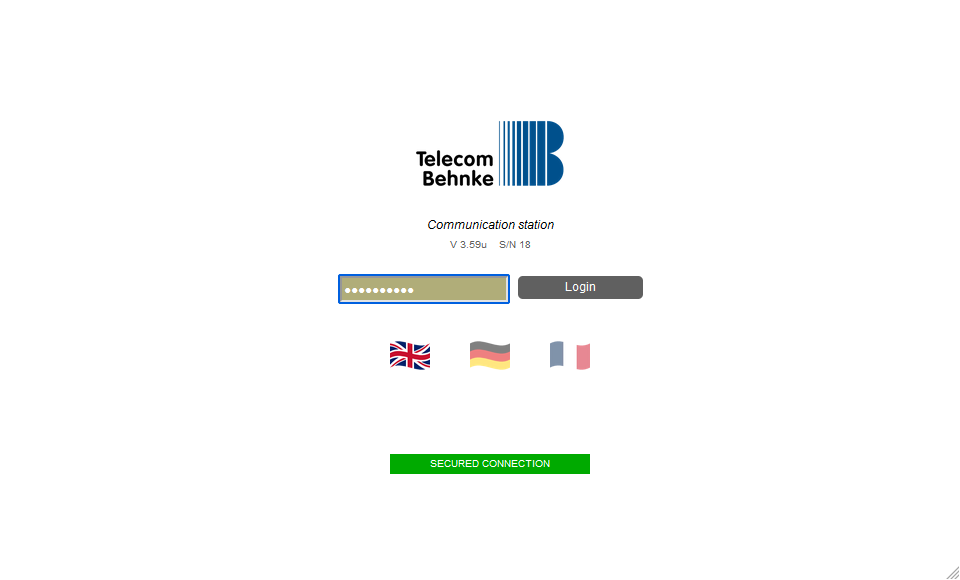
Start your browser, enter the IP address of the Behnke Station in the address bar and log in.
-
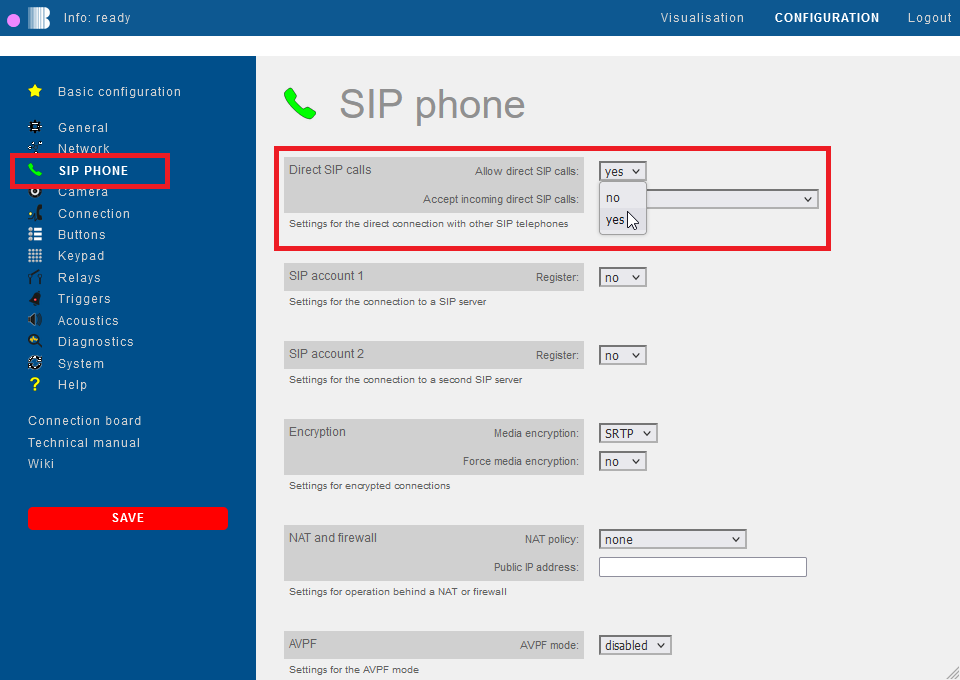
Click on "SIP phone" in the menu. There you will find the option "Allow direct SIP calls". Select "Yes" here and click "Save" on the left. If you want to be able to call the Behnke Station from your remote stations please also enable the option "Accept incoming direct SIP calls".
-
Then switch to the menu item "Buttons" on the left. Instead of a call number you can just enter
sip:<IP address of the remote station>in the field "Call number" for the desired button. For example, if your remote SIP phone has the IP address 192.168.0.8, you simply entersip:192.168.0.8here.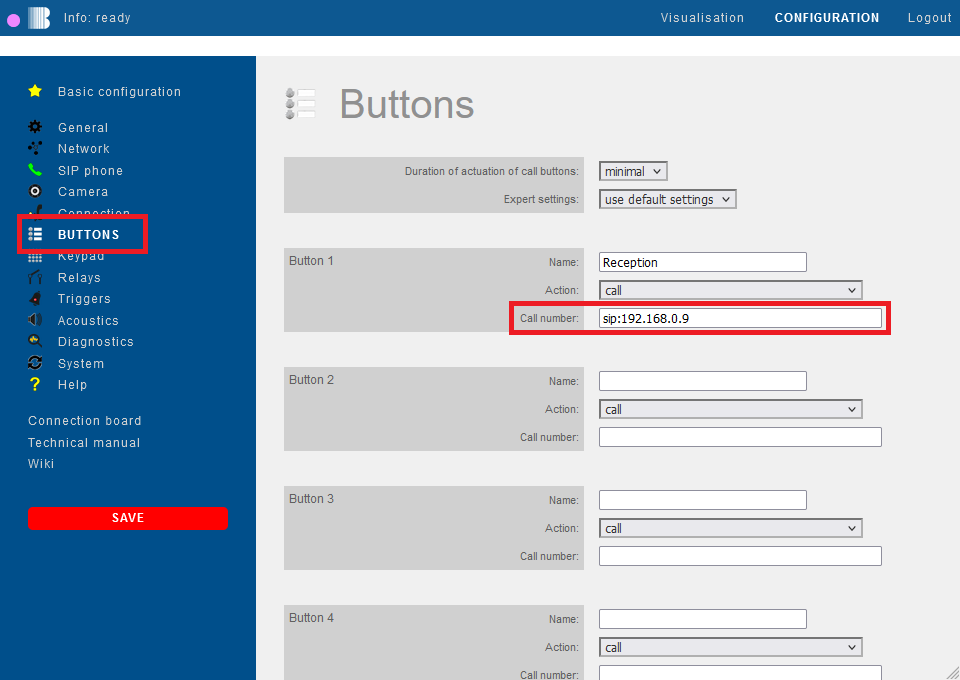


1.2 Configuring a button to trigger direct SIP calls
- In the sidebar, click the menu item
- Navigate to the section of the button to be programmed, e.g. the section Button 1
- Set the option Action to an appropriate value, e.g. Call
- A special parameter is used in the input field of the option Phone number to signal that the call is to be made as a direct SIP call
- Use the following notation in the input field:
sip:<IP address of the remote station>- e.g.:
sip:192.168.16.4
- In the sidebar, click to save the configuration

Note
Using commands in the phone number field, you can perform various functions. These commands are a comprehensive tool for customizing your Behnke Station and for implementing individual functions.
Extensive information on using commands in call buttons can be found here: Configuring commands in buttonsPlanned
2. Pseudo SIP registration for SIP phones
Some SIP phones can only initiate SIP calls if they are registered with a SIP server. In such a case, direct SIP calls are actually not possible if you are not using a PBX.
However, it is possible to register such a SIP phone with the Behnke Station (pseudo SIP registration). To do this, simply enter the IP address or the host name of your Behnke Station as the SIP server in the SIP account of your SIP phone. Telephone number, user name, ID and password can be chosen arbitrarily. The Behnke station will simply confirm all registration requests sent to it without checking the SIP credentials. You can therefore specify the login data as you wish without having to store them in the Behnke Station. This way your SIP phone is able to perform a SIP registration without using a SIP server. However, if you want to pseudo-register multiple SIP phones with your Behnke Station, you should make sure that the used registration data is unique. Please assign different SIP registration information for each phone used.
In order to use the pseudo SIP registration, you just have to activate the "Allow direct SIP calls" option on the Behnke station as described above.
To make a call from the Behnke Station to a pseudo-registered phone just click on the menu item "Buttons" on the left. There you scroll down to the desired button and simply enter sip:<pseudo phone number>@<IP address of the SIP phone> in the field "call number" instead of a real phone number. For example, if the SIP phone has the IP address 192.168.0.86 and you used the number 123 in the pseudo SIP registration, simply enter sip:123@192.168.0.86.

3. Configuration guides for SIP phones
Below you will find configuration guides for different SIP phones. In the individual guides you will find a section "Direct SIP calls". In this section you will find a description of how direct SIP calls can be activated and used, or whether a pseudo SIP registration must be performed with the phone.
- Auerswald® COMfortel® 3600 IP
- DNAKE A416 W
- Fanvil® i55A
- Fanvil® V67
- Gigaset® Maxwell 4
- Grandstream® GSC3570
- Grandstream® GXV3380
- Linphone® App for Android® und iOS
- Linphone® Desktop for Microsoft® Windows®
- snom® D385N
4. FAQ
Note
There is currently no content available here yet. As soon as content is planned, the pages will be marked as planned. Feel free to use the Report a problem function on the right in the toolbar to request new content, ask questions, or report anything that is unclear.
You can also give feedback after every heading, so that we can continuously improve our wiki:
- Move your mouse over the heading
- A small ? appears
- Click the small ?
We welcome every suggestion, every correction and every idea for improvement.