
Individual announcements
It is possible to set up individual voice announcements on the Behnke Station and have them played automatically under certain circumstances. How to achieve this is described below.
1. Automatically generate voice announcements via the Behnke Station
ATTENTION:In order for the voice prompt to be generated automatically, the computer from which you access the web interface must have an Internet connection!
-
On the Behnke Station's web interface, click on the item "Acoustics" in the menu on the left and scroll all the way down. Under "Announcement", select the number of the voice announcement you want to generate in the drop-down menu at the front. A total of up to nine voice announcements can be generated. Then click on the
generatebutton.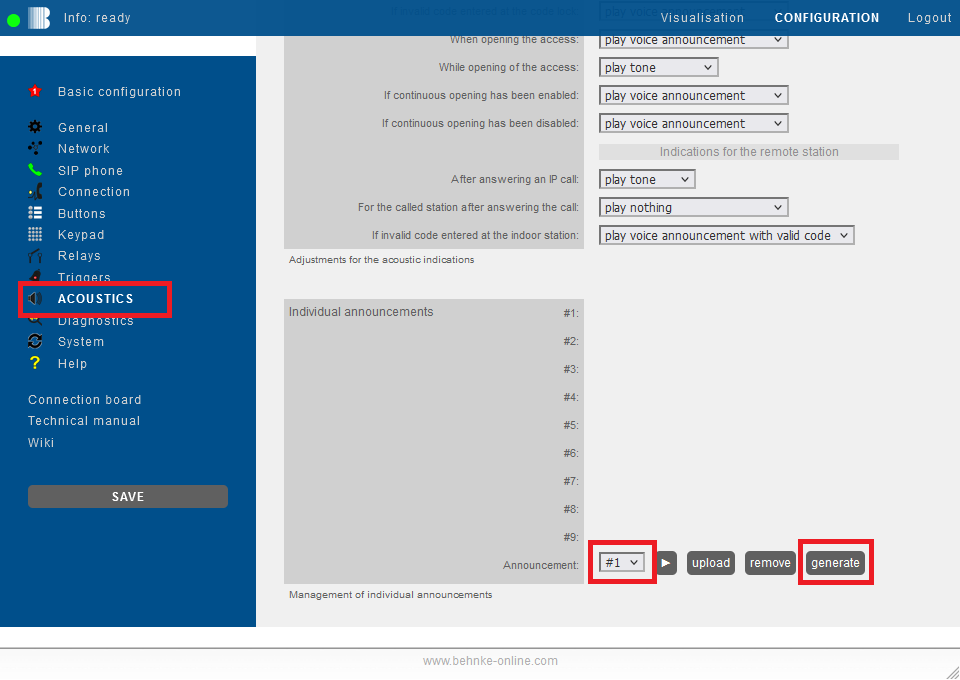
-
An input field will be opened. Simply enter the text for the voice announcement to be generated and click on
OK.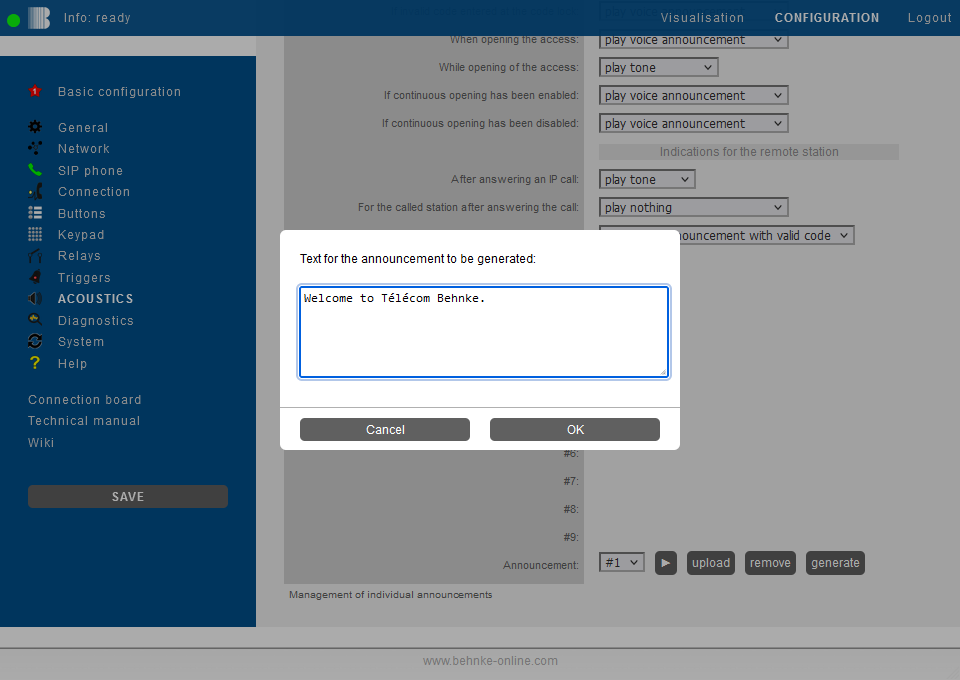
-
It then takes a few seconds until the announcement is generated. When the generation is complete, you will see the text of the voice announcement in the overview at the corresponding number. You can use the
►button to listen to the voice announcement on your computer.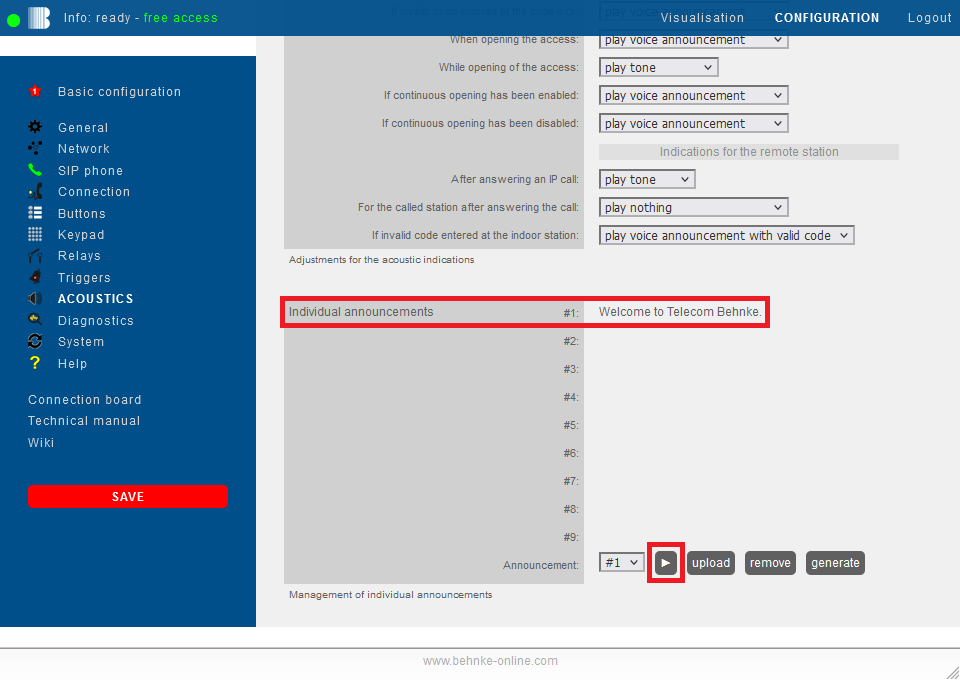


2. Record and upload your own announcements
2.1 Recording a voice announcement in the Wiki
Record your announcement right here. The finished WAV file automatically has the format required by the BEHNKE STATION.
Record an announcement
Important
Your voice announcement is recorded and converted exclusively on your device, in your browser. The audio data is never transmitted to our servers or to third parties, stored there, or analyzed. We do not process any personal data within the meaning of the GDPR.
Your microphone is accessed only after you have expressly granted permission in the browser, and you can revoke this permission at any time in your browser settings. The recording is held temporarily in working memory and is irrevocably discarded when you close or reload the page. The file is stored only if you actively download the generated file; it is then located solely on your device and is your responsibility.
You are yourself responsible for any further use of the recording, in particular for obtaining any required consent from the person recorded and for complying with copyright and personality rights requirements.
2.1. Record voice announcements with Audacity®
-
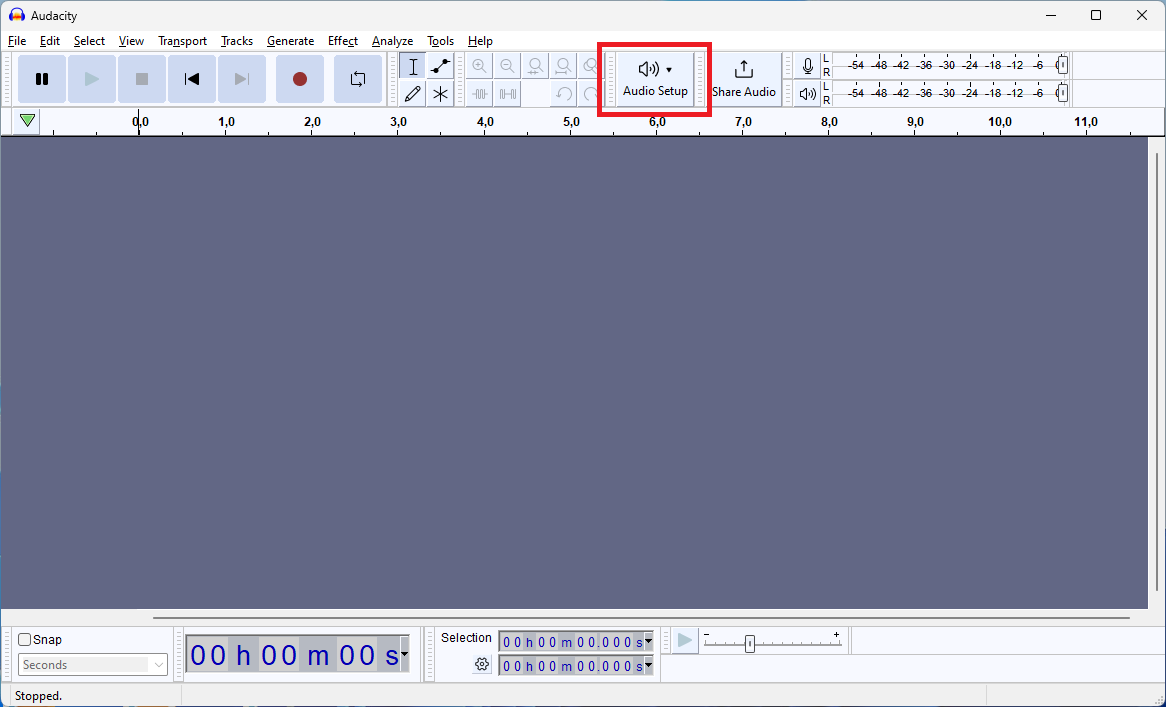
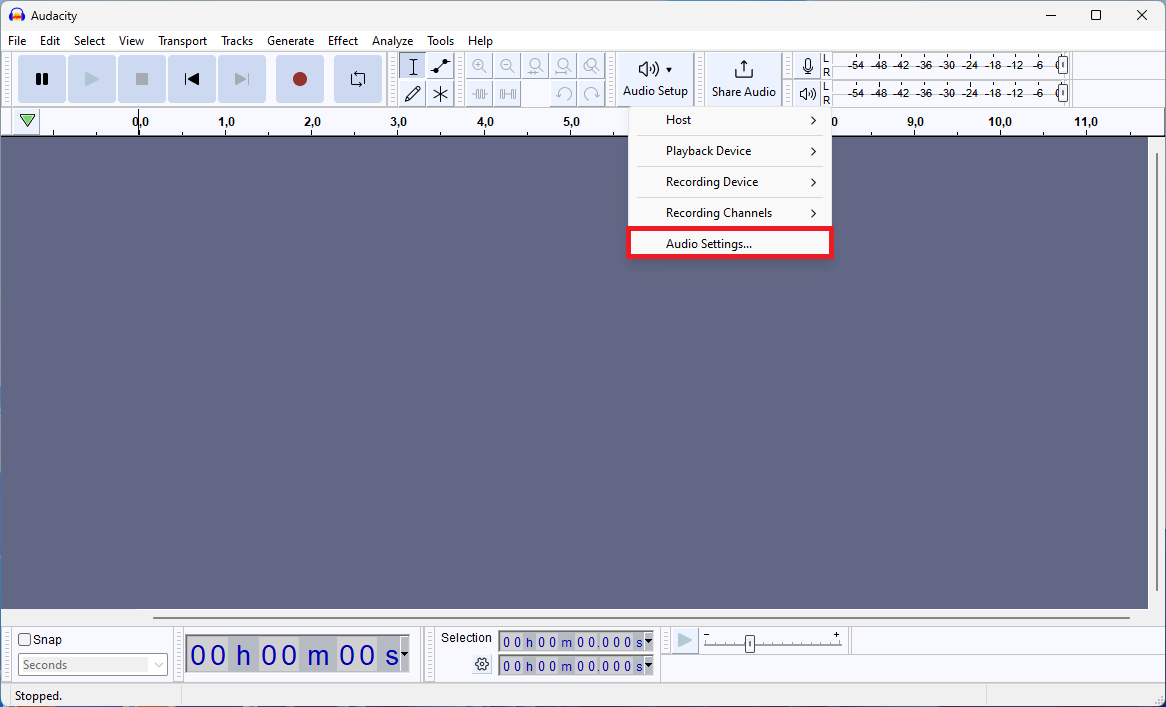
For example, the Audacity® software can be used to record a voice announcement. To do this, start the software and click on the "Audio Setup" button at the top.
-
Select "Audio Settings..." from the drop-down menu.
-
The window with the audio settings opens. Make the following settings there and then click OK:
Field Setting Channels 1 (Mono) Project Sample Rate 16000 Hz Default Sample Rate 16000 Hz Default Sample Format 16 Bit 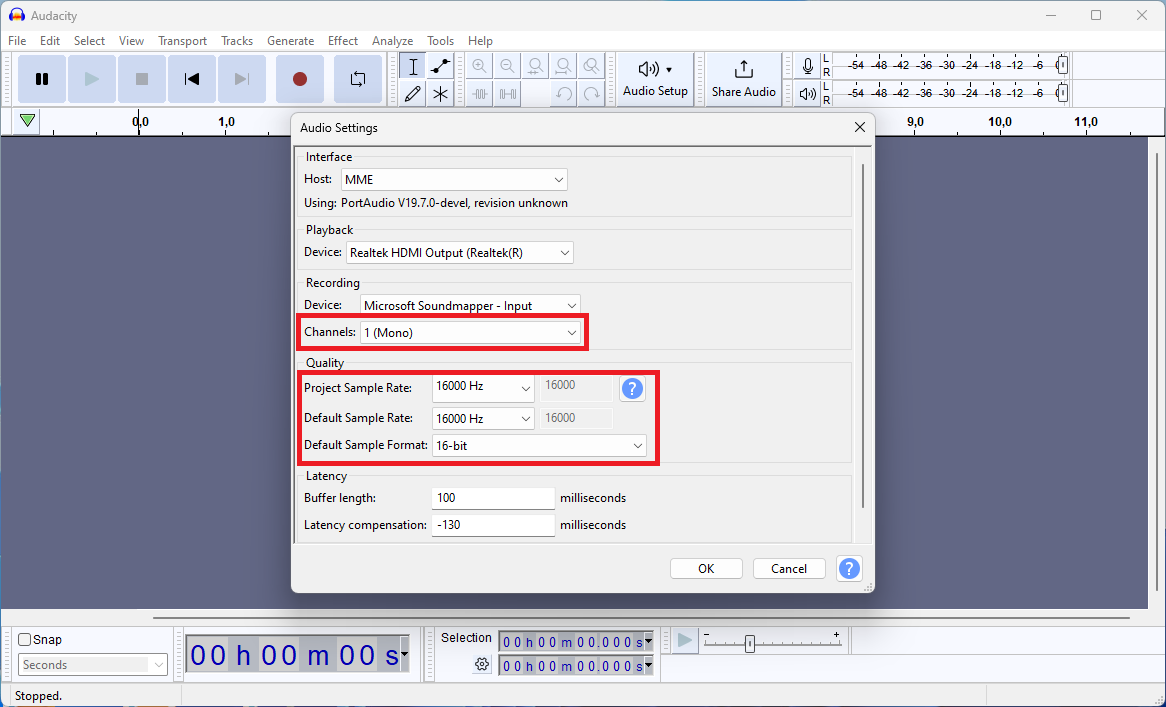
-
You can then start recording using the
●button above. Use the■button to end the recording.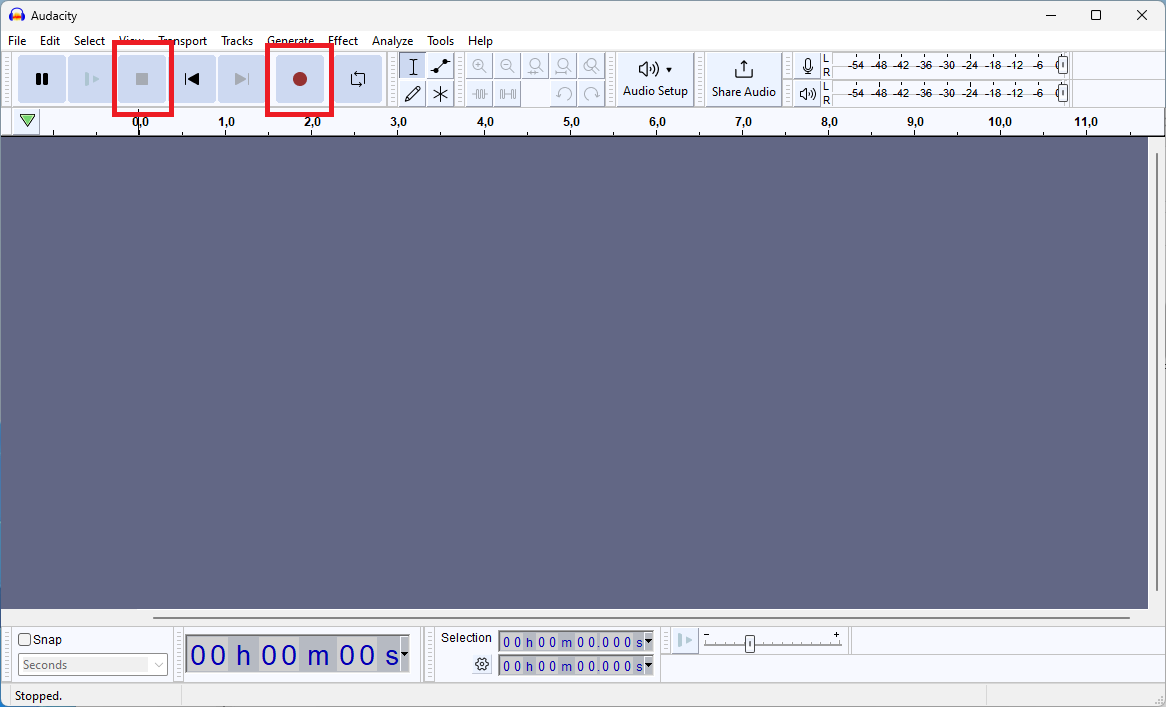
-
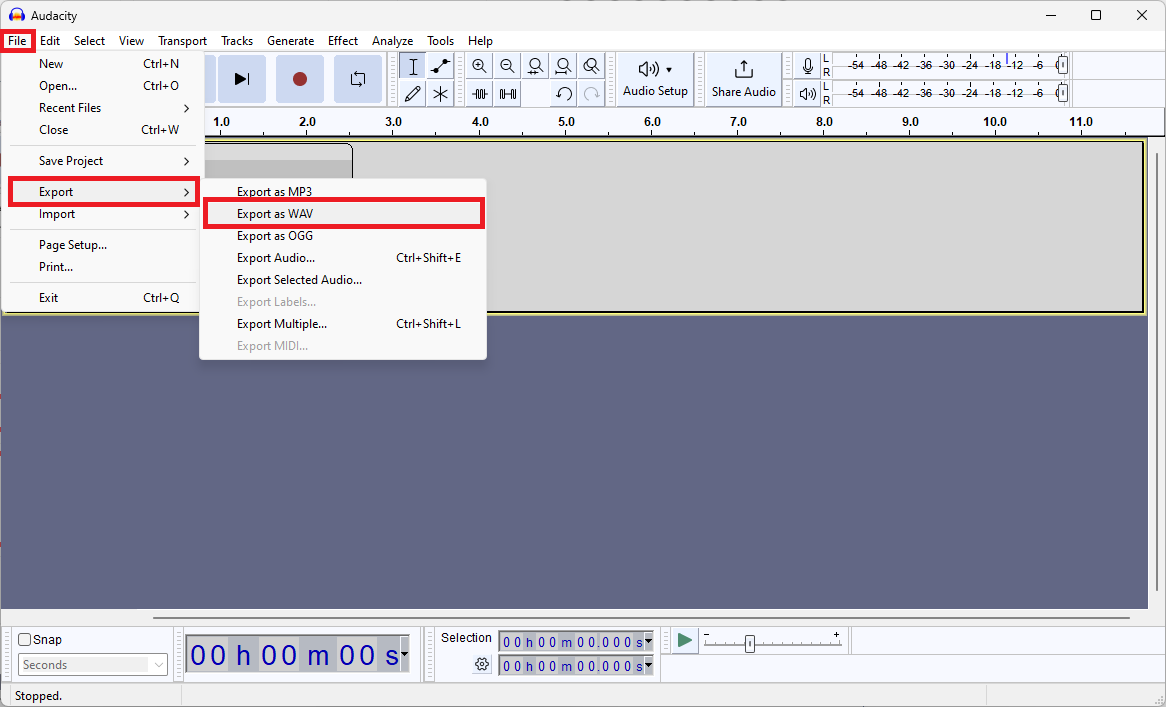
When recording is finished, click "File" > "Export" > "Export as WAV" at the top left and save the file.


2.2. Upload the announcement to your Behnke Station
-
On the Behnke Station's web interface, click on "Acoustics" in the menu on the left and scroll all the way down. Under "Announcement", select a number for the announcement from the drop-down menu at the front. A total of up to nine voice announcements can be uploaded. Then click on the
uploadbutton and select the desired voice prompt.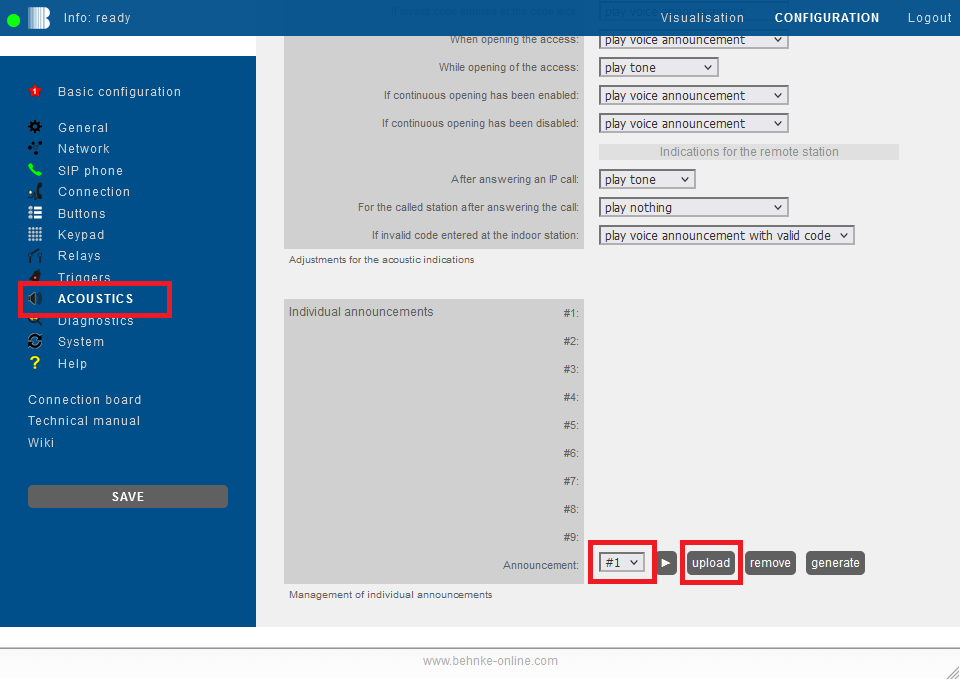
-
It then takes a few seconds until the file is uploaded. You will then find the file name at the top of the overview next to the corresponding number in the voice announcement. You can use the
►button to listen to the voice announcement on your computer.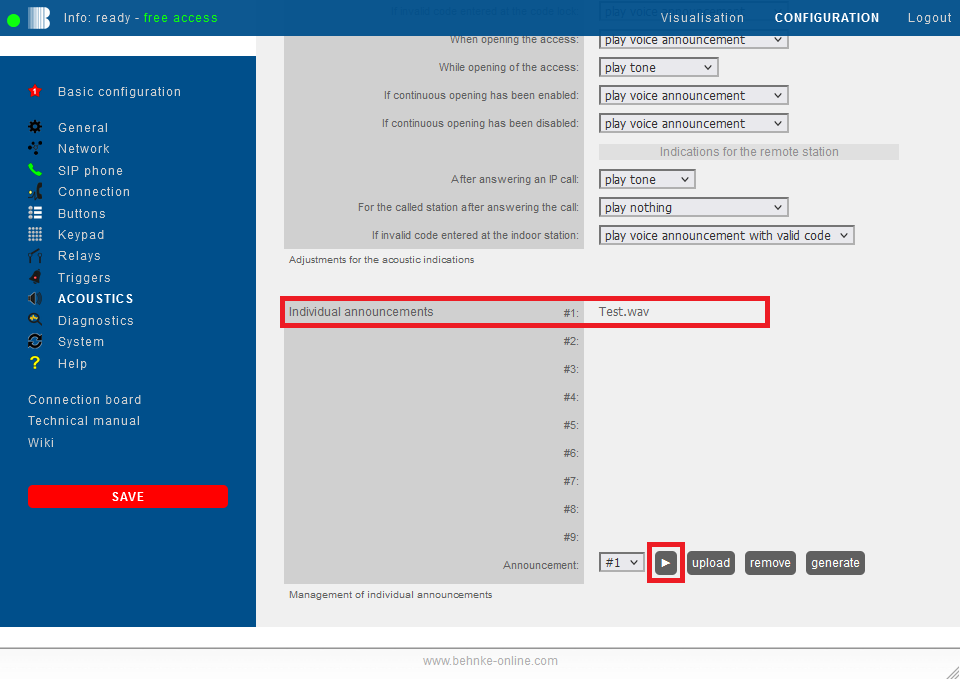


3. Configure announcements
3.1. Via the menu item "Acoustics"
In the "Acoustics" menu, you can specify in the "Indications" section that a specific voice announcement should be played when a specific event occurs. To do this, simply select the voice announcement to be played in the drop-down menu for the relevant event.

NOTES:- Voice announcements cannot be set for all events listed here.
- If you select the option "play voice announcement", a factory-prepared voice announcement will be played.
- When you move the cursor over the drop-down menu, a►button will appear at the back, allowing you to listen to the selected voice announcement.
3.2. Via the menu item "Triggers"
In the "Triggers" menu you will find further events that can trigger a voice announcement. Here you will find a drop-down menu "Action" for the respective trigger. Here you can simply select a voice announcement, which will then be played at the Behnke Station.

NOTE:For some triggers you will only find one input field "Call number". A phone number is usually entered there, which is called when the button is pressed, just like with a call button. Instead of a phone number, you can also store a command to play a voice announcement. You can find out more about this in the last step on this page.
3.3. Via a call button
Pressing a call button can also trigger an announcement. To do this, simply select the voice announcement to be played in the "Buttons" menu item next to the corresponding call button in the "Action" field. When the button is pressed, the voice prompt is then played on the Behnke Station.

3.4. As a command in the call number field
For call buttons and some triggers, it is also possible to issue a voice prompt as part of a sequence of actions. For example, when you press a call button, a voice announcement can first be played on the Behnke Station and then a phone number can be called. To do this, simply enter the command to play the voice announcement or to trigger the sequence of actions in the "call number" field of the button or trigger.

The command to play a voice announcement on the Behnke Station is cmd:play<number of voice announcement>, e.g. cmd:play1.
With the command cmd:/send<voice announcement number> it is also possible to play the voice announcement after the connection has been established for the called party.
Here are some examples of how the commands can be used within command chains to trigger a sequence of actions:
-
Play voice message 2 at the Behnke Station and then dial 4711:
cmd:play2;4711 -
Play voice announcement 7 after the call has been established for the called party:
cmd:/send7;4711 -
Play voice announcement 3 at the Behnke Station, then call number 4711, and after picking up, play voice announcement 4 for the called party:
cmd:play3/send4;4711
The complete documentation with all the commands that can be used here can be found on the Behnke Station's web interface in the menu item "Buttons", right at the bottom.
4. FAQ
Note
There is currently no content available here yet. As soon as content is planned, the pages will be marked as planned. Feel free to use the Report a problem function on the right in the toolbar to request new content, ask questions, or report anything that is unclear.
You can also give feedback after every heading, so that we can continuously improve our wiki:
- Move your mouse over the heading
- A small ? appears
- Click the small ?
We welcome every suggestion, every correction and every idea for improvement.