
Configuration guide Cisco® Call Manager (CUCM)
1. Configuration guide
This configuration guide describes how to set up a Behnke Station as a SIP extension of a Cisco® Call Manager. We are assuming that the basic configuration of the Cisco® Call Manager has already been done, and we will only describe the steps required to register the Behnke Station with the CUCM. We also assume that the Behnke station has already been integrated into the network and can be accessed via the IP address in a browser.
WARNING:The information shown here was kindly provided to us by a customer. Therefore we cannot guarantee that it is complete and up-to-date. It is assumed that the Behnke-Station is already set up to the extent that access to the web interface is possible. If this is not the case, please follow the instructions provided with your base electronics (manuals) and refer to the technical manualRecently updated — within the last 72 hours to complete the basic setup.
1.1. Adding an End User to identify the Behnke Station
Please note that the configuration of the extension is only shown very briefly and the configuration may vary for your CUCM. If in doubt, please contact your CUCM's support.
-
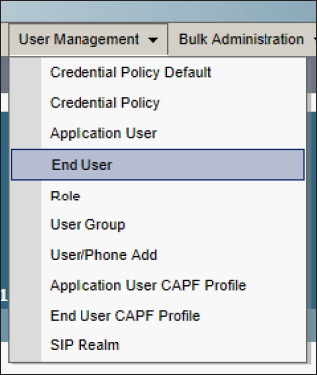
Go to the administration interface of the CUCM and go to "User Management" > "End User".
-
Click on the
+ Add Newbutton to create a new end user. -
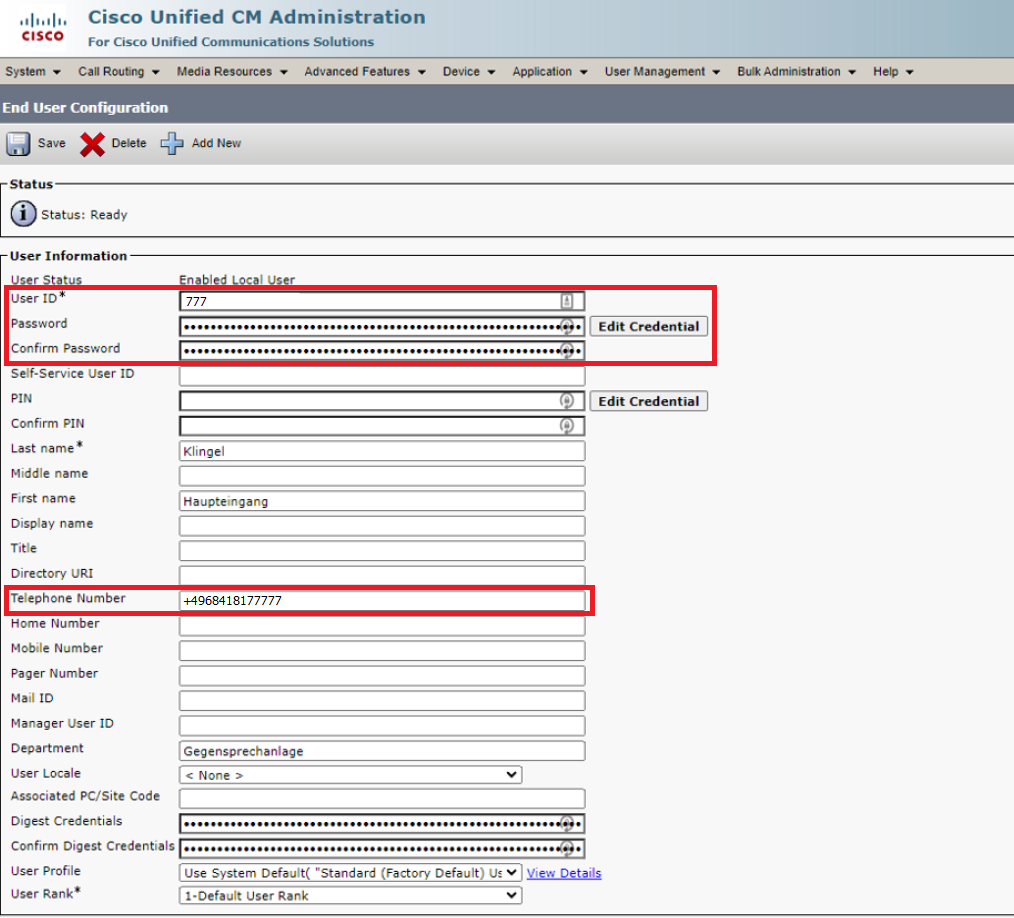
Set "UserID" and "Password" here to register the Behnke Station and fill in the "Telephone Number" field below. In the mandatory field "Last name" you can enter any name, e.g. "Door bell" or "Main entrance". Then click the "Save" button at the top.


1.2. Creating a Third Party Phone
-
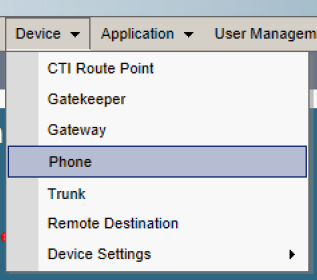
Go to "Device" > "Phone".
-
Click on the
+ Add Newbutton to create a new device. -
Select "Phone Type" "Third-party SIP Device (Basic)" and click
Next. Alternatively "Third-party SIP Device (Advanced)" can also be selected if you are using a Behnke station with a camera. However, this requires twice as many license units as the basic version. Here is an excerpt from the Cisco® documentation: "Note: Third-party SIP Device (Basic) supports one line and consumes three license units, and Third-party SIP Device (Advanced) supports up to eight lines and video, and consumes six license units." -
Below you will find a configuration example for the basic version. Please note that the values may vary if, for example, no non-secure profiles are allowed or others are used. This information can be requested from the system supervisor. The mandatory fields here are marked with *, and some of them are already pre-assigned with values. The following entries must or should be made (screenshots are not included here because the input mask is multi-page):
- "MAC-Address" of the Behnke Station
- "Device Pool" = Default
- "Phone Button Template" = Third-party SIP Device (Basic)
- "Digest User" = created "End User", see above
- "Logged Into Hunt Group": disable
- "Device Security Profile" = Third-party SIP Device Basic - Standard SIP Non-Secure Profile
- "SIP Profile" = Standard SIP Profile
- leave all other parameters on default
Then click
Save. -
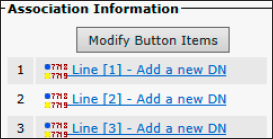
After that the first "Line" (phone number/Extension) has to be configured. In order to do taht please click on "Line [1] - Add a new DN".
-
Make the following settings here and then click on
Save.- "Directory Number" = Extension
- "Maximum Number of Calls" = 1
- "Busy Trigger" = 1
-
Finally, activate the configuration by clicking on
Apply Config.


1.3. Configuring the Behnke Station
-
Open a new tab in your browser, enter the IP address of the Behnke Station in the address bar and log in.
-
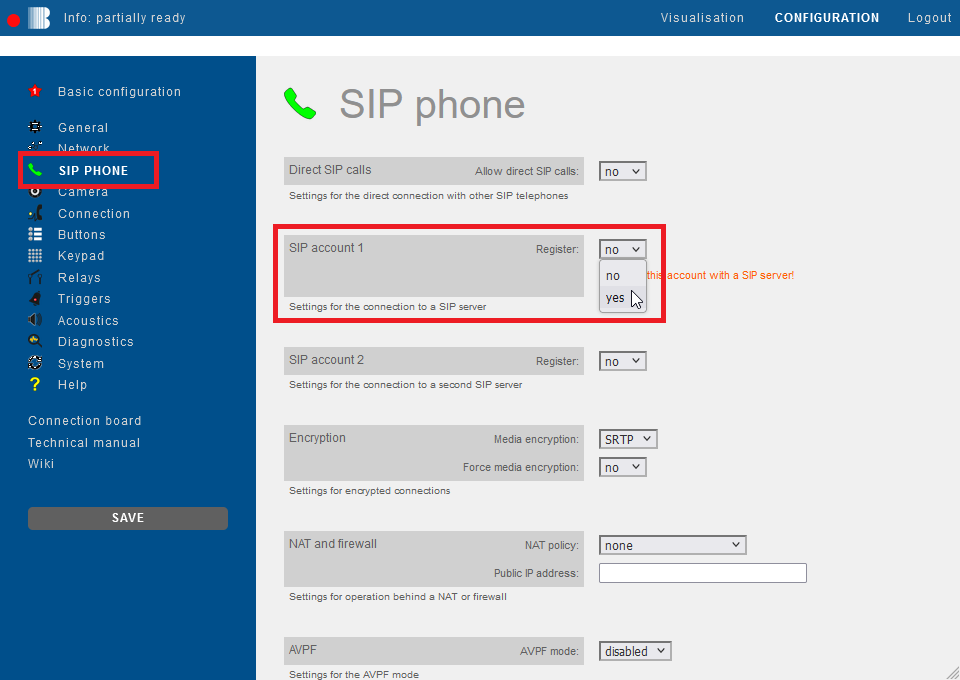
Click on "SIP Phone" in the menu. Scroll down to "SIP account 1" and select the option "yes" for "Register".
-
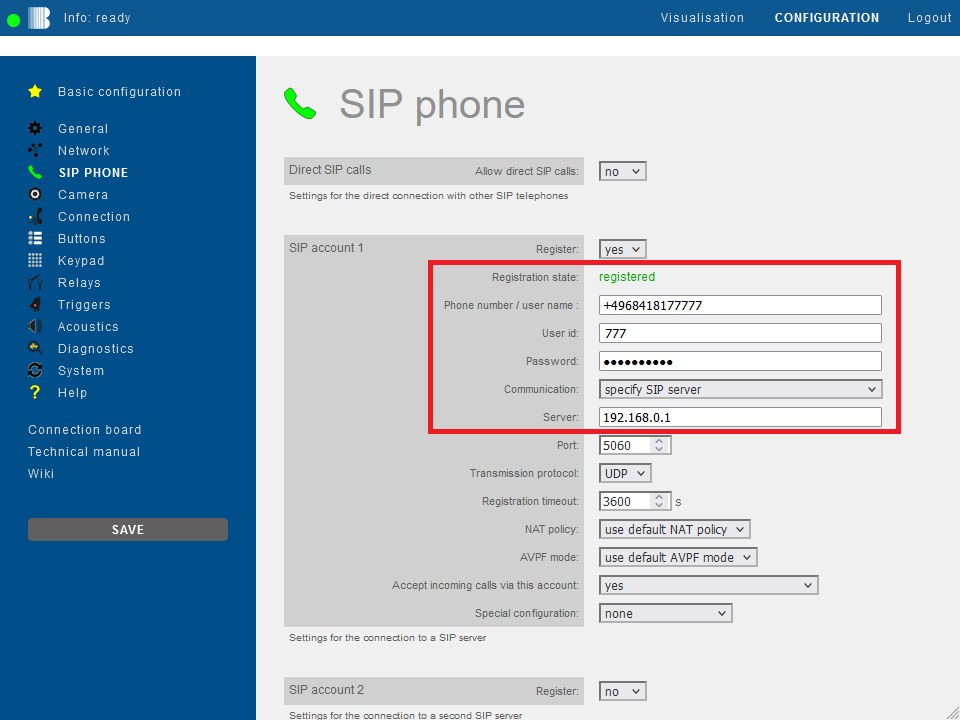
Then fill in the fields with your CUCM's SIP credentials as follows and click "Save" on the left.
Field Behnke Station Wert CUCM Phone number/user name "Telephone number" of the user User ID "User ID" Password "Password" Server IP address/hostname of your CUCM If the registration was successful, the "Registration state" changes to registered.
-
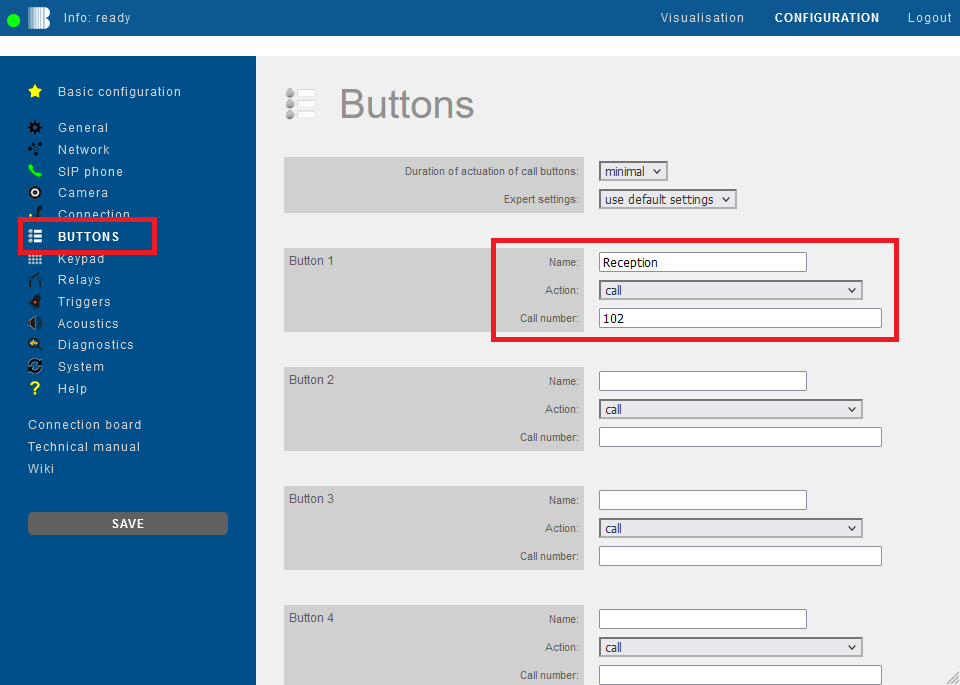
Then click "Buttons" in the menu on the left. For the desired call button enter the extension number or phone number that is to be called when the button is pressed. Then click "Save" on the left.
-
Open your browser
-
Access the Behnke Station web interface
-
Log in


- Click the

- Navigate to the SIP Account 1 or SIP Account 2 section.
- Set the Register option to yes


- Use the assignments from the following table and enter the information in the corresponding input fields (in the SIP Account 1 section, if applicable SIP Account 2) of your Behnke station.
- Open your browser
- Go to the web interface of the Behnke Station
- Log in

- Click in the sidebar to save the configuration
- Wait a moment until the Behnke Station is reachable again
- If the registration is successful, the Registration state option changes to the value registered
- If this is not the case, please check the previous steps again

- Click the menu item in the sidebar to save the configuration
- Navigate to the section of the button to be configured, e.g. Button 1
- Set the Action option to the value Call
- In the input field of the Phone number option, enter the number that should be called when the button is pressed
- Click in the sidebar to save the configuration

The configuration of the Behnke Station was last updated for version 5.26.
2. Trouble shooting
Calls drop when they are forwarded to a mobile phone. In traces from the Behnke station you can see that the CUCM terminates the call with "503 Service Unavailable".
As a test, please enable the "Late Offer / SDP in ACK" option for "for outgoing calls" on the Behnke station's web interface under "SIP phone" in the "Media Management" section. If this does not solve the problem, please contact support using the form: Support-Ticket